 Day One Fixes
SolvedFixUpdated
PC Performance Tips for Monster Hunter Wilds
Short answer
Use these Tips to Improve Your PC's Performance for Monster Hunter Wilds
Steam Community guide by アンジェル.
Foreword
I live on the poverty line.
What a** strange (!)** way to start this guide, isn't it?
What I am trying to convey to you is that I cannot afford a high-end PC, or even a mid-range PC.
I never could.
So I have been always forced to tweak my PC settings to make games run smoother for almost 30 years now.
What I am about to share with you is less for those of you who can afford a great PC and have little to no problems to begin with. It is more for those of you who want to enjoy the game more but cannot afford a new PC (parts) - like me.
The lower your PC specifications, the more these tips will help you. But maybe one or two of these tips will even be good for those of you who have a mid-range PC.
I wish You all the best from the bottom of my heart and hope you can get a good tip out of it.
**That being said: Let us get started! **
Happy Hunting!
Performance Tip 1: Reinstall GPU Drivers
Before we get into the in-game tweaks, let us get on the same page with your PC settings.
Start with reinstalling your GPU drivers, cleanly, if you have not done it recently already.
By cleanly I mean:
use Display Driver Uninstaller (DDU) before reinstalling your graphics card drivers.
Hang on a minute! My GPU drivers are up to date!
While that may be true, it is also true that over time, after countless updates, there may be conflicting leftover files that have not been properly removed. As they accumulate over time, no one can tell which of your driver files is doing what and why, eventually causing issues without you even knowing. To be on the safe side, we want to perform a clean installation of your graphics cards' drivers to rule out the presence of corrupt files. To do this, we use a special tool that does the job more thoroughly than the standard uninstallers that come with your video drivers. That would be Display Driver Uninstaller, also known as DDU.
The best way to do this is to download the latest driver software for your graphics card first so that you can install it immediately after using DDU.
1. Download your latest graphics cards drivers from official resources
For the latest Nvidia drivers: http://www.nvidia.com/Download/index.aspx
For the latest AMD drivers: http://support.amd.com/en-us/download
2. Download DDU
Display Driver Uninstaller
http://www.guru3d.com/files-details/display-driver-uninstaller-download.html
Display Driver Uninstaller (DDU) is freeware. Only download it from this trusted source.
3. Unpack DDU
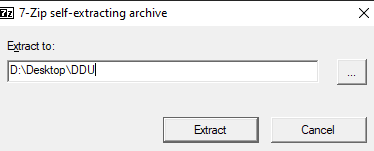
I recommend to unpack it onto your Desktop - makes it easy to find
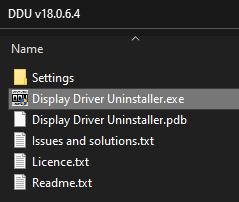
4. Run DDU
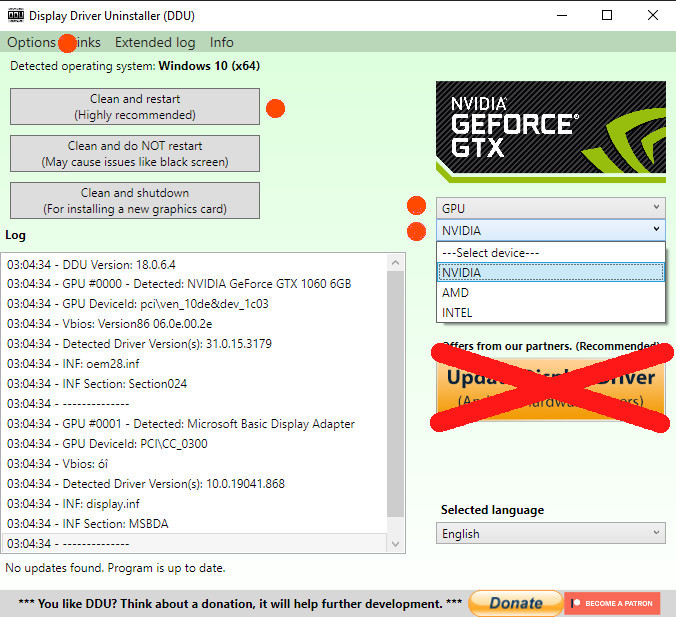
Select your GPU manufacturer from the drop-down menu.
If you are happy with the options (the default is fine), click the Clean and restart button.
Ignore the advertisement
5. Install Your graphics card latest driver which you have downloaded before
6. Restart Your PC
When you are finished, you can safely delete the folder containing the DDU from your PC.
7. Delete Monster Hunter Wilds' Shader Cache
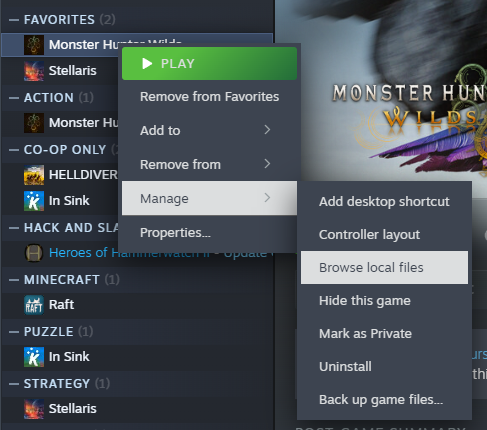
You can find the Shader Cache by Right-clicking on Monster Hunter Wilds in your Steam Library -> Manage -> Browse local files
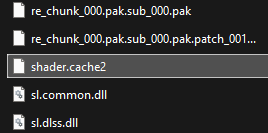
Find the file shader.cache* and delete it - that will force Monster Hunter Wilds to recompile the shaders, giving you the best possible result after the clean reinstall of your graphics card drivers.
Trivia: High Res Textures Requirements
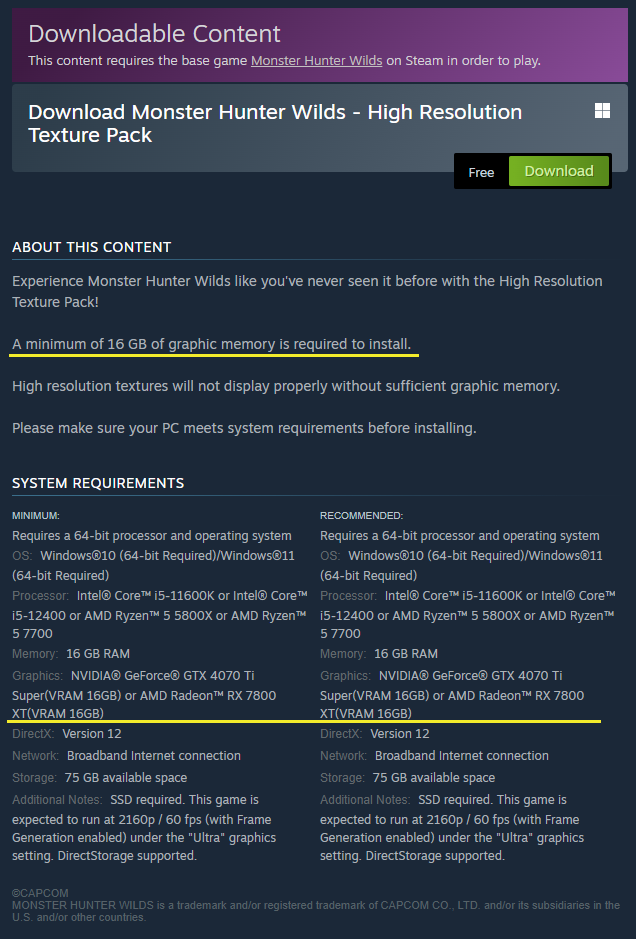
A lot of players complained that they have troubles using the High Resolution Texture Pack.
https://store.steampowered.com/app/3308900/Monster_Hunter_Wilds__High_Resolution_Texture_Pack/
The problem with that is: nearly all of the players who complain about it do not meet the requirements to begin with. While the system requirements are 8 GB video RAM for the game, the usage of the High Resolution Texture Pack explicitely says 16 GB video RAM are necessary.
You will not notice any good changes with the pack without running the game in 4k.
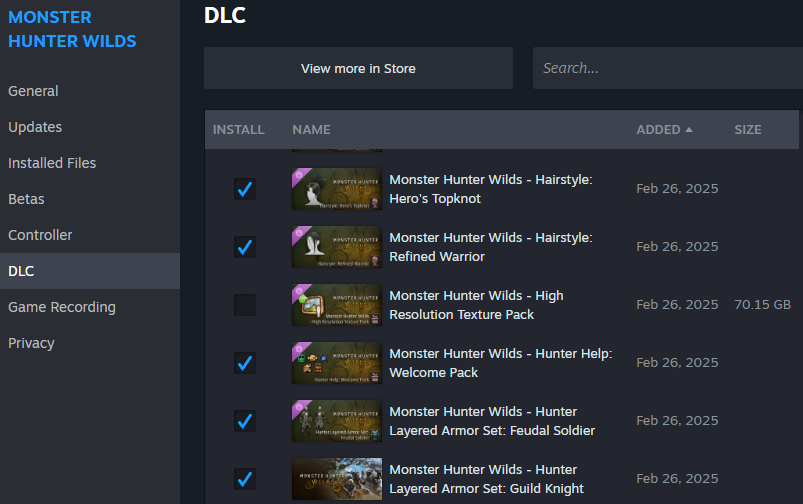
I therefore recommend not to install / to remove the DLC from your collection if you accidently got it.
Again: this guide is not meant for the people who can afford such a high end graphics card which comes with 16 GB VRAM. I am already happy that I can afford 8 GB VRAM.

Performance Tip 2: Virtual Memory
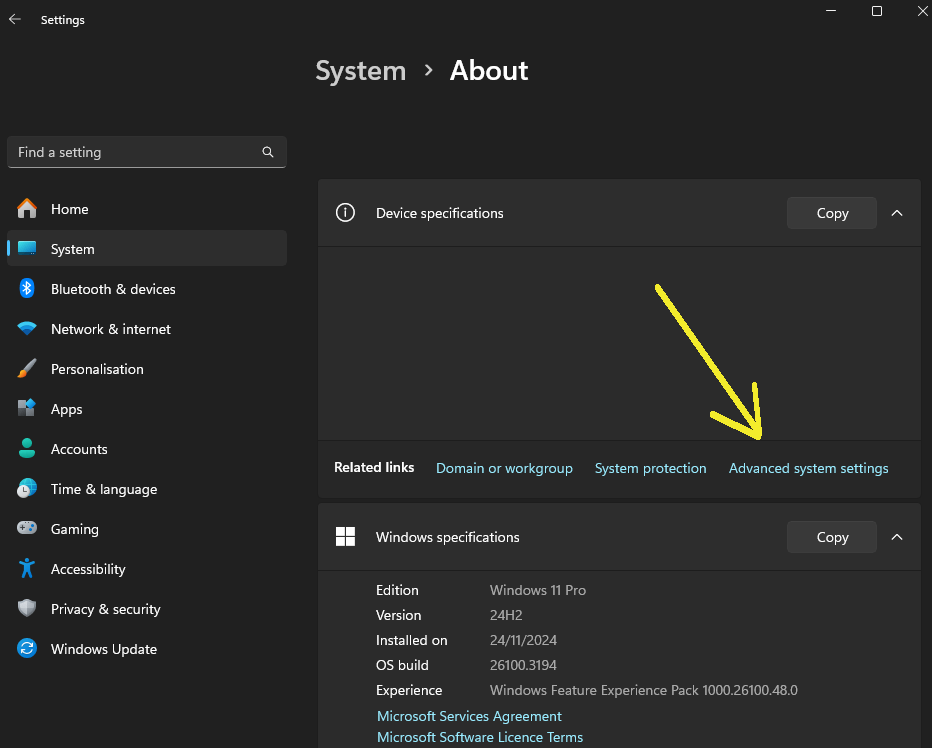
Go to **Settings **and there select the **System **category, then go to Advanced system settings
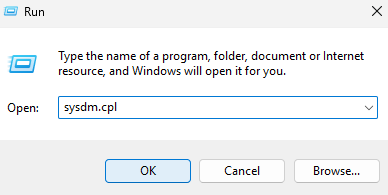
Open **Run **(WIN+R) and enter "sysdm.cpl"
or
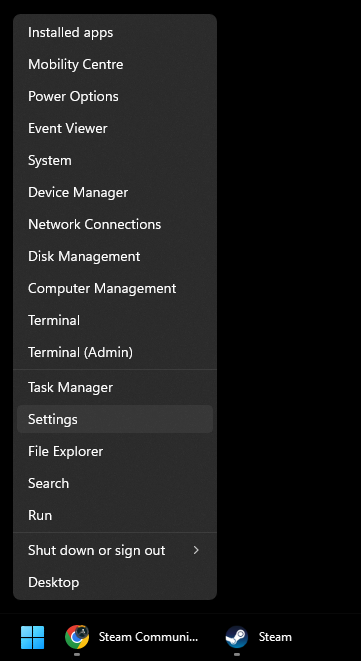
Right-click on the Windows logo on your taskbar, there select Settings
(there are many ways to access Windows Settings)
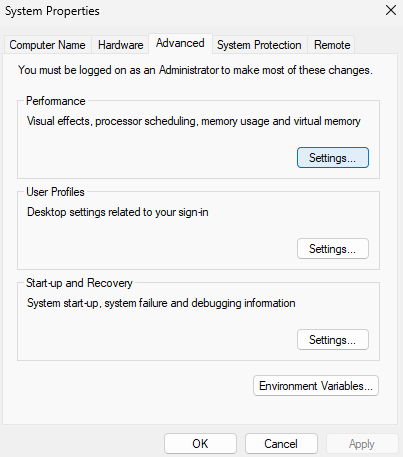
In the subsection Performance Options we go for the Advanced tab and select change for the Virtual Memory
I recommend a size of at least 32 GB, better 64 ~ 128 GB
1 GB = 1024 MB
32 GB = 32768 MB
64 GB = 65536 MB
128 GB = 131072 MB
We keep the initial size and maximum size identical to improve the system's stability, by preventing unnecessary trimming actions and other issues which might occur if the space is not properly reserved.
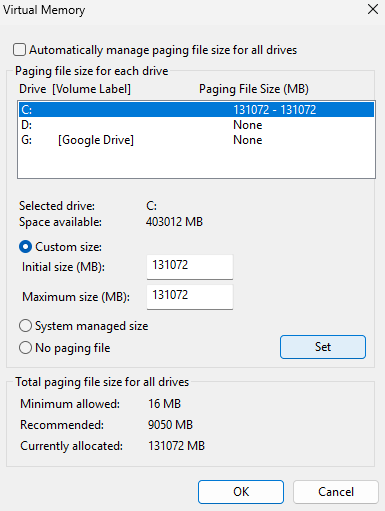
Important: Keep enough Free Space
Windows and Windows applications rely on virtual memory and free space to create cache files. It is therefore important that you always have around 100 GB + virtual memory as free space on your operating system drive (C:). So if you are using e.g. 64 GB of virtual memory, make sure that your OS drive has about 164 GB of free space.

Performance Tip 3: Windows Effects
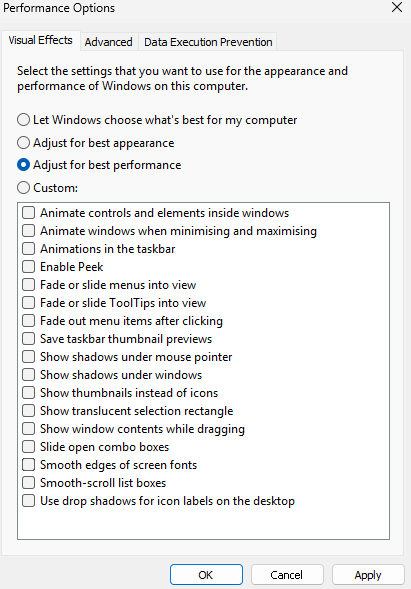
Configure Windows' visual effects for optimal performance, diminishing extraneous animation effects to enhance system performance. The impact of this adjustment is notably more pronounced on low-performance PCs compared to high-performance systems.
Same access like Performance Tip 2: Virtual Memory: enter "sysdm.cpl" in **Run **(WIN+R)
You might be surprised what difference it could make on most PCs
Note: I usually keep for myself on the "Show thumbnails instead of icons" and "Smooth edges of screen fonts" options. But other than that these are the settings I am always using to ensure best performance in every situation, unhindered by Windows' fancy animatons effects.
Performance Tip 4: Shader Cache
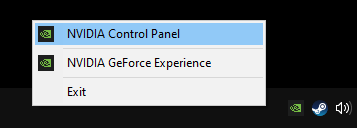
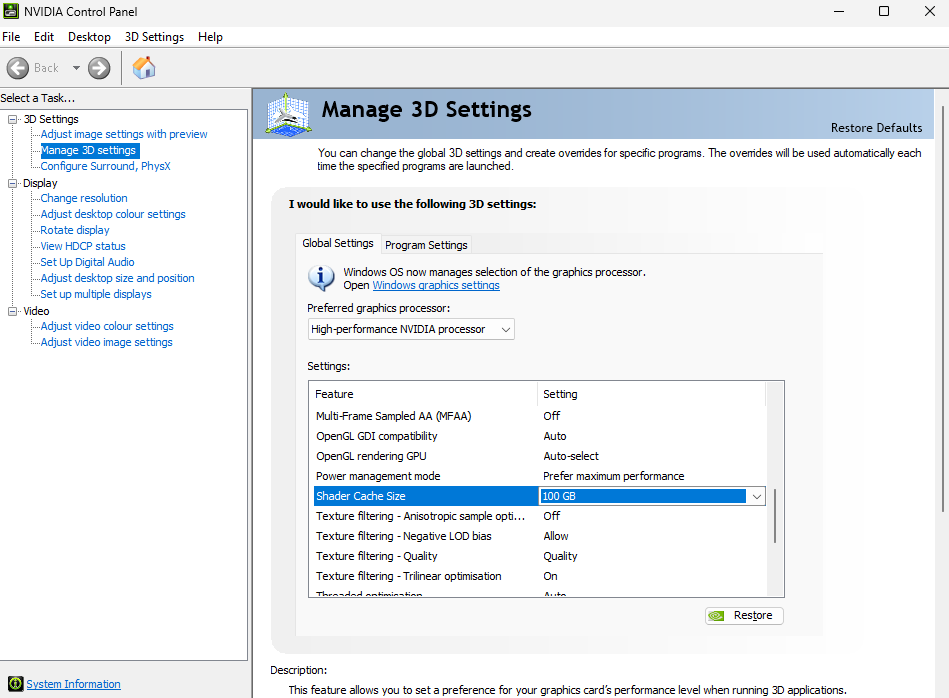
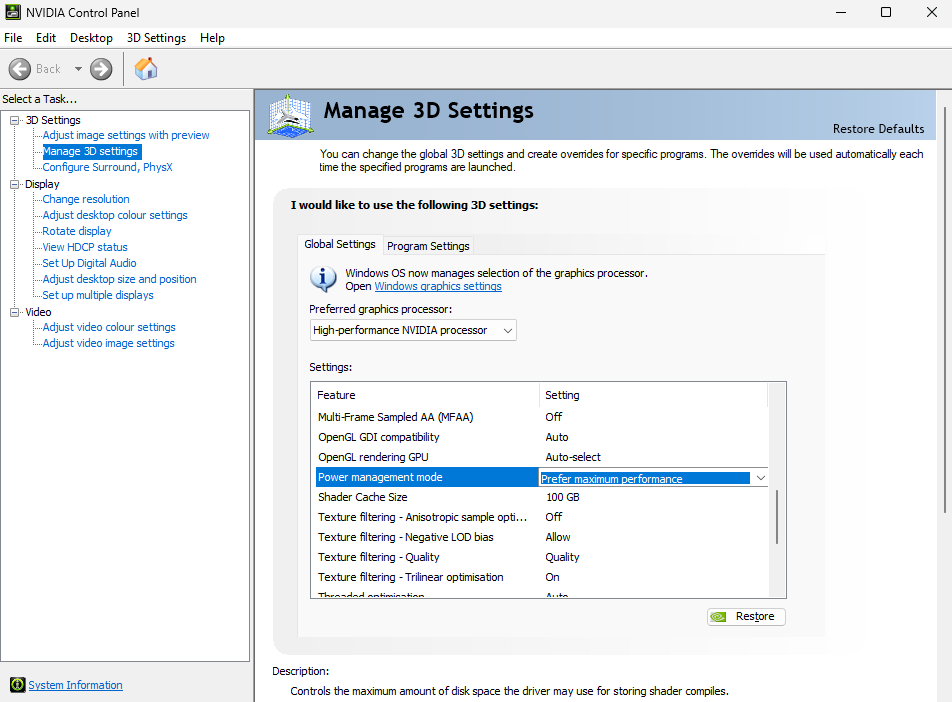
This option can be found in Nvidia's control panel
Set to 100 GB (in this image it shows the Nvidia Control Panel for Nvidia graphics cards)
While you are at it, I also recommend to set the option Prefer maximum performance as well.
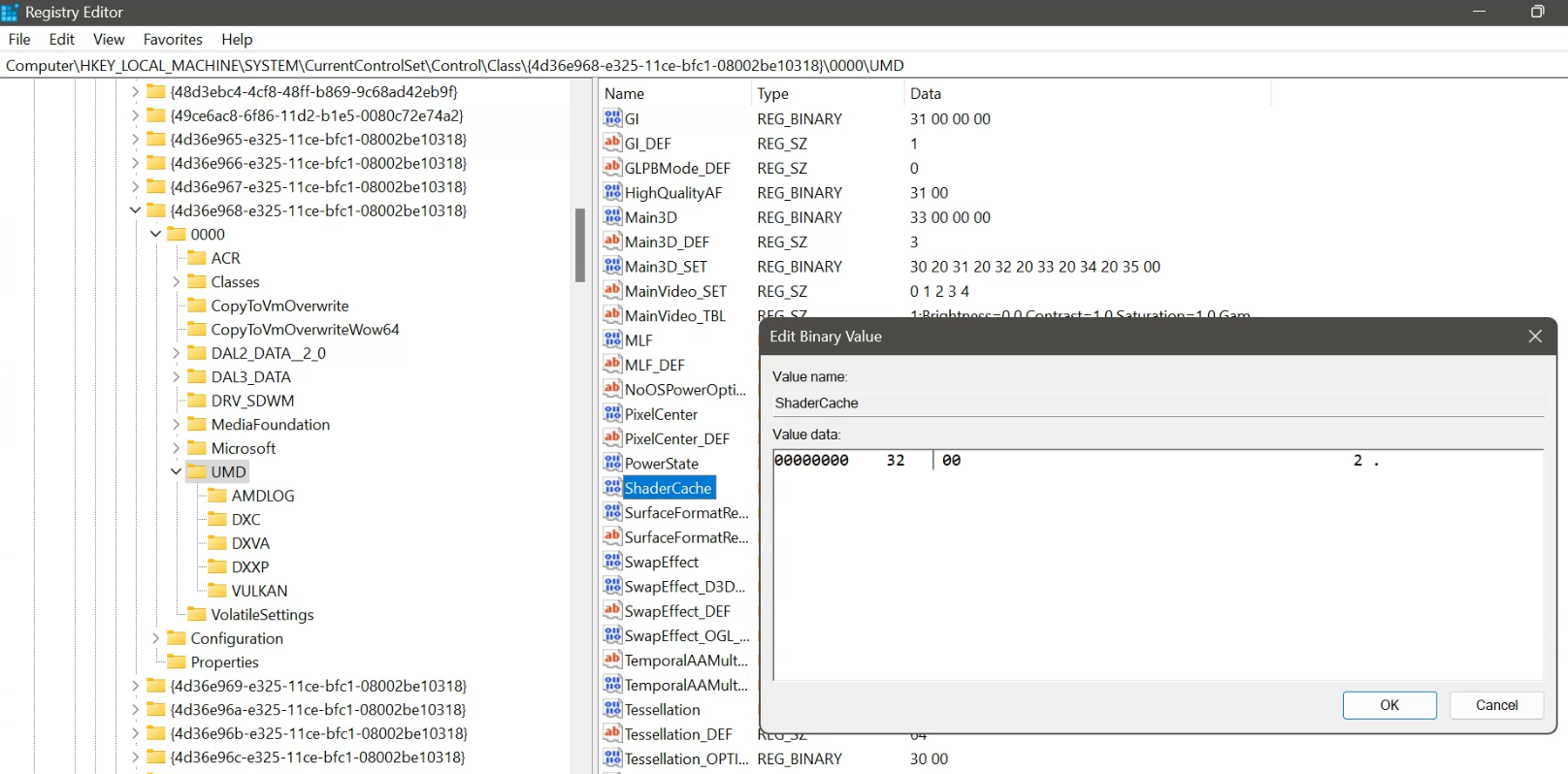
For AMD graphics cards you need to open **regedit **(WIN+R, then enter "regedit") go to
HKEY_LOCAL_MACHINE\SYSTEM\CurrentControlSet\Control\Class{4d36e968-e325-11ce-bfc1-08002be10318}\0000\UMD
or
HKEY_LOCAL_MACHINE\SYSTEM\CurrentControlSet\Control\Class{4d36e968-e325-11ce-bfc1-08002be10318}\0001\UMD
change there "ShaderCache" from "30 00" or "31 00" to "32 00"
(30 00 = off / 31 00 = AMD Optimized / 32 00 = Always On)
Performance Tip 5: Increase CPU Priority
Either use the task manager to increase the game's priority, or use this registry entry to permanently run **Monster Hunter Wilds **in higher priority than other applications in Windows.
https://drive.google.com/file/d/1bC7RJ3Ftt5lQ7nE4KNjJMSy_Dwllqigb/view?usp=sharing
Google Drive automatically checks for viruses, so you can be certain the download is safe.
Content of the file
Windows Registry Editor Version 5.00
[HKEY_LOCAL_MACHINE\SOFTWARE\Microsoft\Windows NT\CurrentVersion\Image File Execution Options/MonsterHunterWilds.exe/PerfOptions]
"CpuPriorityClass"=dword:00000003
"IoPriority"=dword:00000003
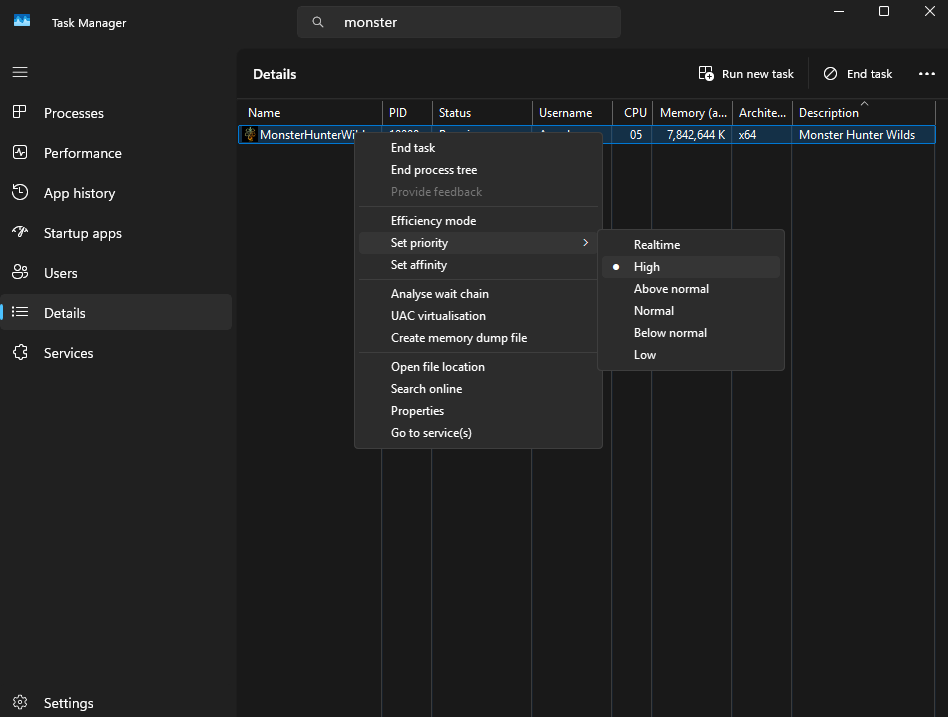
To summon the Task Manager press CTRL+ALT+DEL and select Task Manager - this can be done while the game is running.
While the game is running, go to the Details tab and select MonsterHunterWilds.exe to set its priority to High.
You have to do this every time when running the game. Using the One-click-file above which adds the registry entry comfortably is surely more convenient.
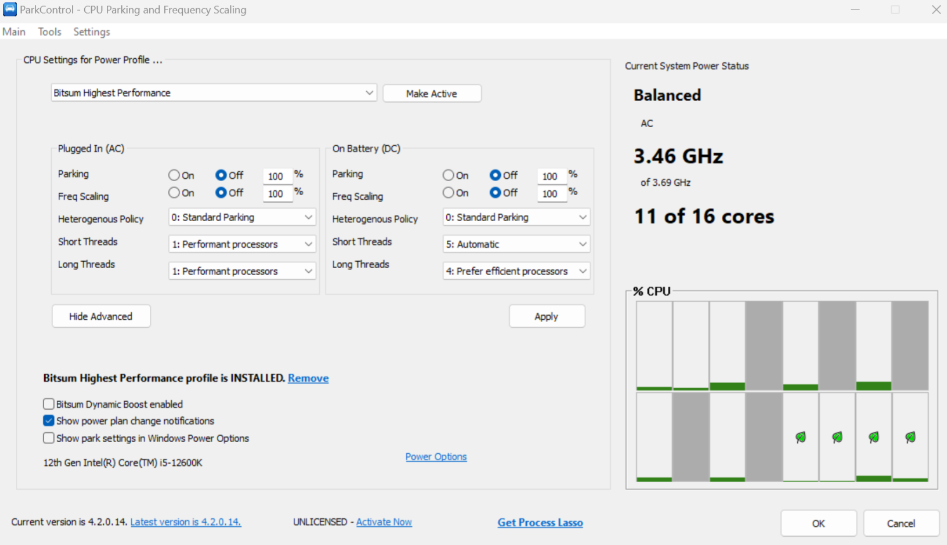
Also worth using is Park Control by bitsum
https://bitsum.com/parkcontrol/
By turning off the CPU cores parking and frequencing you kinda force your CPU into maximum performance. The free version is fully sufficent for Monster Hunter Wilds to manually turn the functionality on/off.
Turn Parking and Freq Scaling all off and hit Apply.
AMD Specific CPU Issue
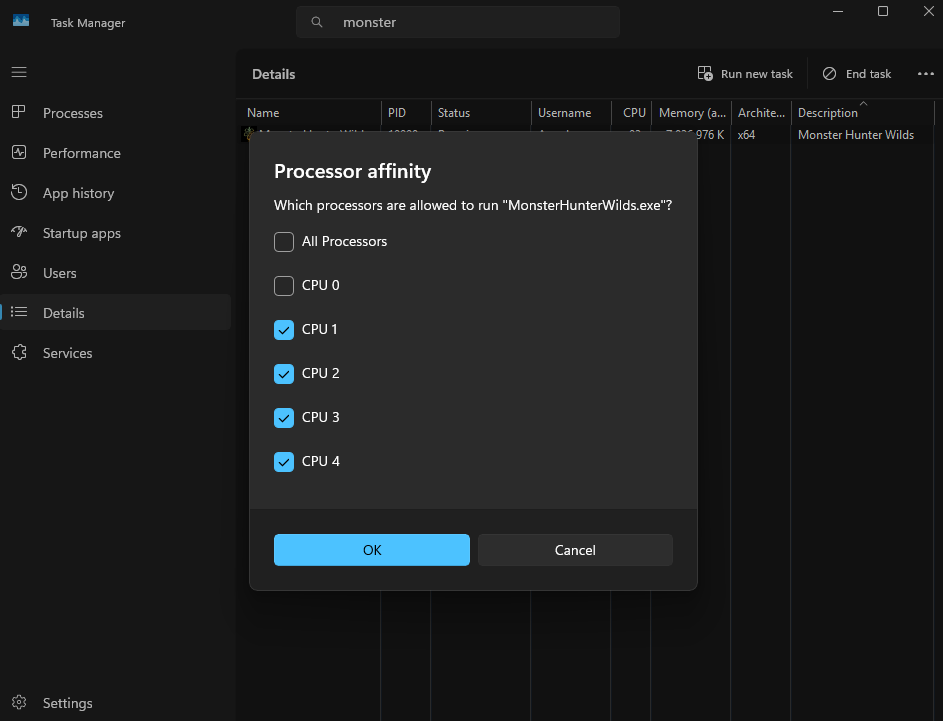
Deactivating the affinity for core 0 with AMD CPUs can result in higher performance.
This has to do with the way Windows scheduling works with the AMD CPU architecture. However, this only applies to older AMD CPUs and PCs not running the latest version of Windows. It might be worth a try to see if you get an FPS boost from the tweak. Easily reversible and safe to try.
Performance Tip 6: Maximum Power
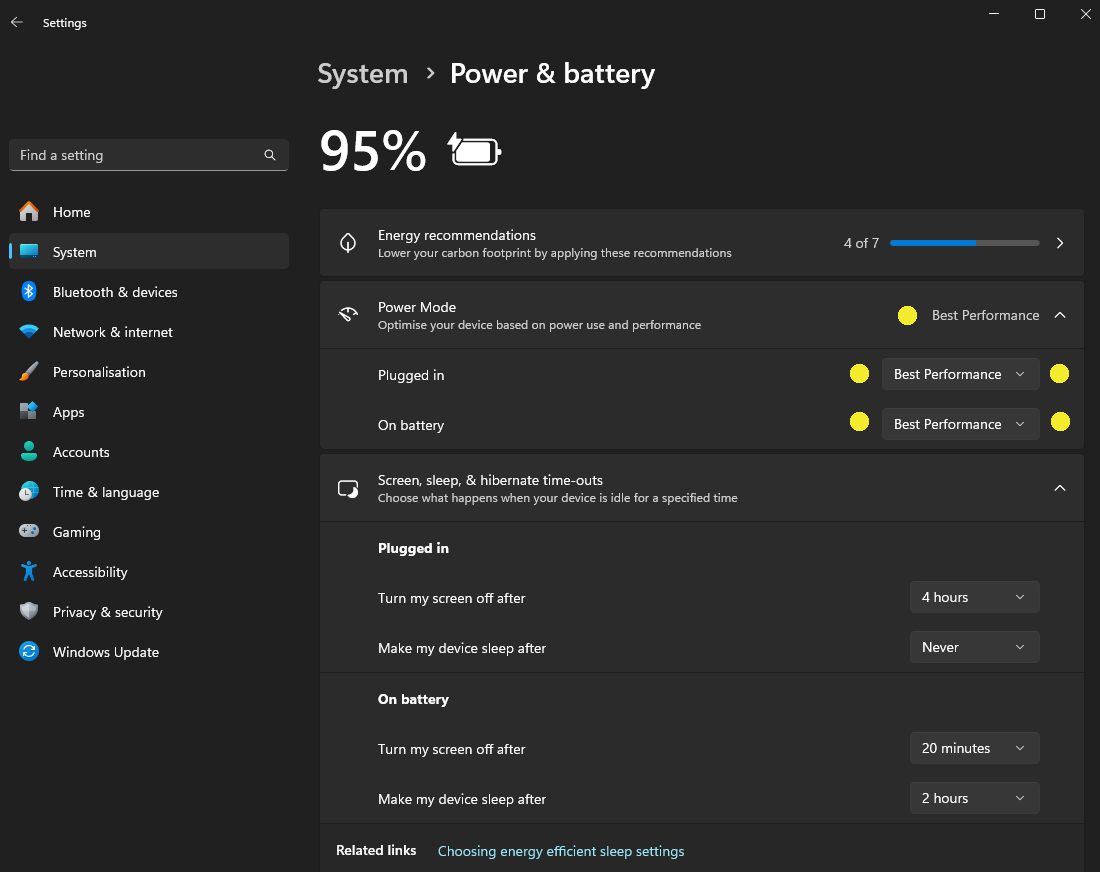
Make sure that your PC and graphics card are running at maximum performance when playing Monster Hunter Wilds - especially on laptops, it is important to turn off any power saving modes and features, assuming you are playing the game with your laptop connected to a permanent power source in the first place.
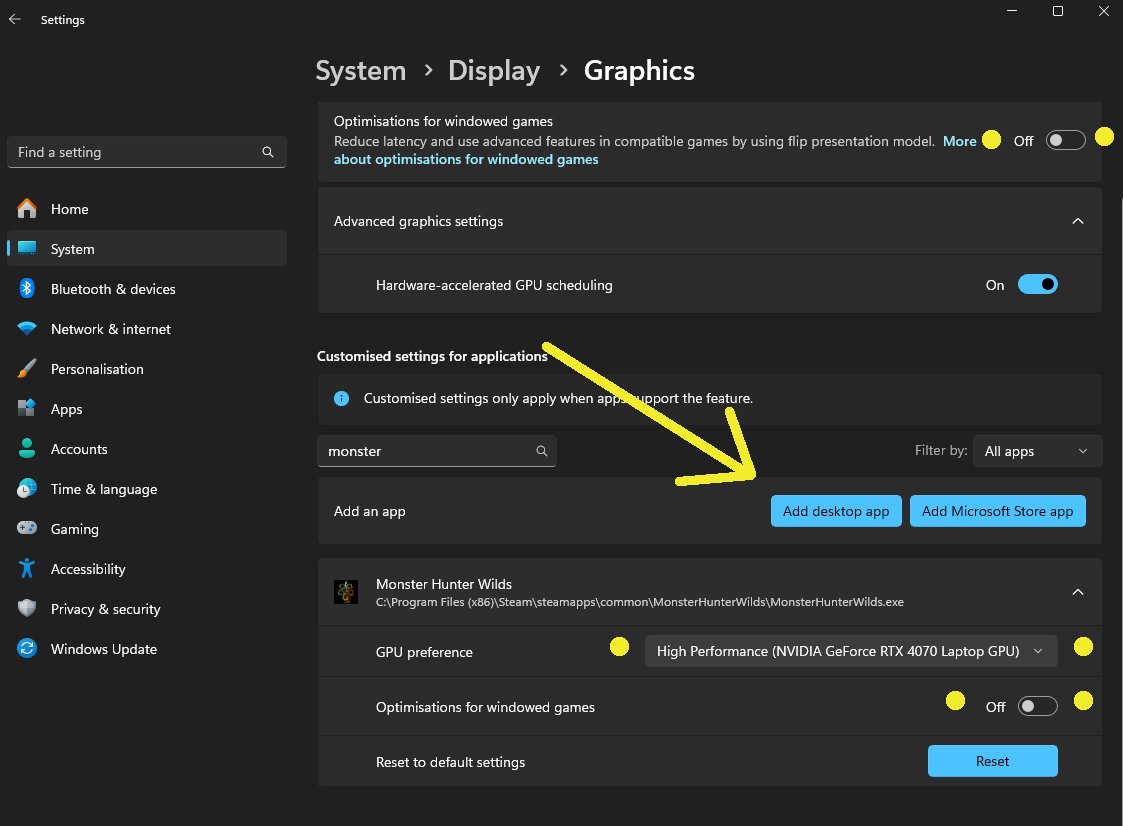
Add Monster Hunter Wilds to the list of applications you want full control over and make sure the best available GPU is always selected. **Never **"Let Windows decide"
Turning off optimisation for windowed games may sound counterintuitive, but we do this because it usually only benefits games from the Microsoft Store app, and can cause problems in other cases, especially with console ports like Monster Hunter Wilds.
Performance Tip 7: Memory Leak
Use ISLC to Cure Memory Leak Issues
Download the tool for free and launch it without installation after extraction
https://www.wagnardsoft.com/forums/viewtopic.php?t=1256
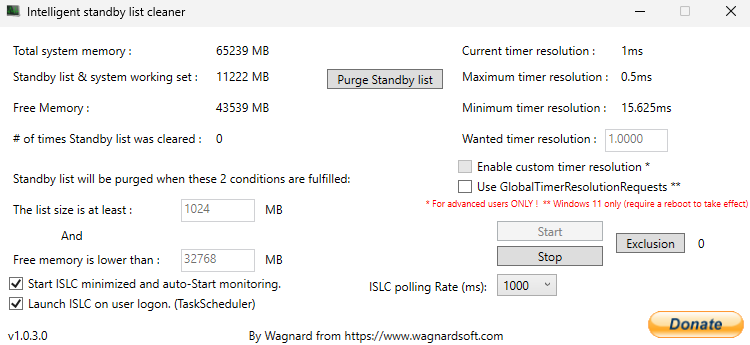
Set the value for Free Memory is lower than to half of your memory size, minimum 16 GB.
In this example it is set to 32 GB as the actual memory is 64 GB.
16 GB = **16384 **MB
32 GB = **32768 **MB
Select
**Start ISLC minimzed and auto-Start monitoring.
Launch ISLC on user Logon. **
for convenience
Hit **Start **to let it do it works and it will automatically effectively negate the effects of what you know as "memory leak". Keep the window open while you play/minimise only.
Memory & NVMe
What if I do not have 32 GB RAM?
In the tip before I described how to counter memory and that you should set the tool to half your memory size and 16 GB minimum. It implies that it is expected for you to have 32 GB RAM by default.
But what if you do not have that much RAM to begin with?
Here is the Bad News
If the RAM you have is lower than 24 GB, then Your PC will not be able to provide you with an enjoyable Monster Hunter Wilds experience.
I made that experience myself with Monster Hunter: World.
**I am not talking about bad frames here. **
As an European I can deal with 25 FPS, PAL standard (for the young ones among you: that is before the internet when people used to use devices in their living rooms called TVs, there used to be an NTSC (USA) and a PAL (Europe) format standard for how the image is being displayed - and yes, we got 25 FPS while the USA got 30 FPS).
**I am not talking about bad graphics either. **
I loved playing on Nintendo Gameboy, SEGA Game Gear Playstation Vita, and Nintendo Switch. I can easily deal with subpar graphics too.
I am talking about unbearable stutters.
Despite the game looked as good as on Playstation with acceptable frames, it still stuttered. It was not my GPU card which acted as bottleneck, but my memory (RAM). I started playing with 16 GB, back then believing that no game ever needs more than that and I would never need more unless I would do video editing. How mistaken I was!
As soon as I got a cheap RAM upgrade, I could only afford 8 GB more, and changed it from 16 GB to 24 GB - it started to work as good as on Playstation.
There is no magic tweak / trick to make it work with less RAM.*
- working good
RAM & NVMe are Very Important!
While most people underline how having a good CPU and good GPU matters, RAM and a fast storage device are often neglected. Should you experience stutters despite having good CPU and GPU, start with checking your RAM first, then make sure that your storage device is fast enough to keep up the load of the caches.
Most NVMe SDDs are fine, Samsung 990 Pro series is a good tip (2025) for being on the affordable end for 1 TB to have enough space for your Windows and a game you are playing.
Performance Tip 8: Core & VMP
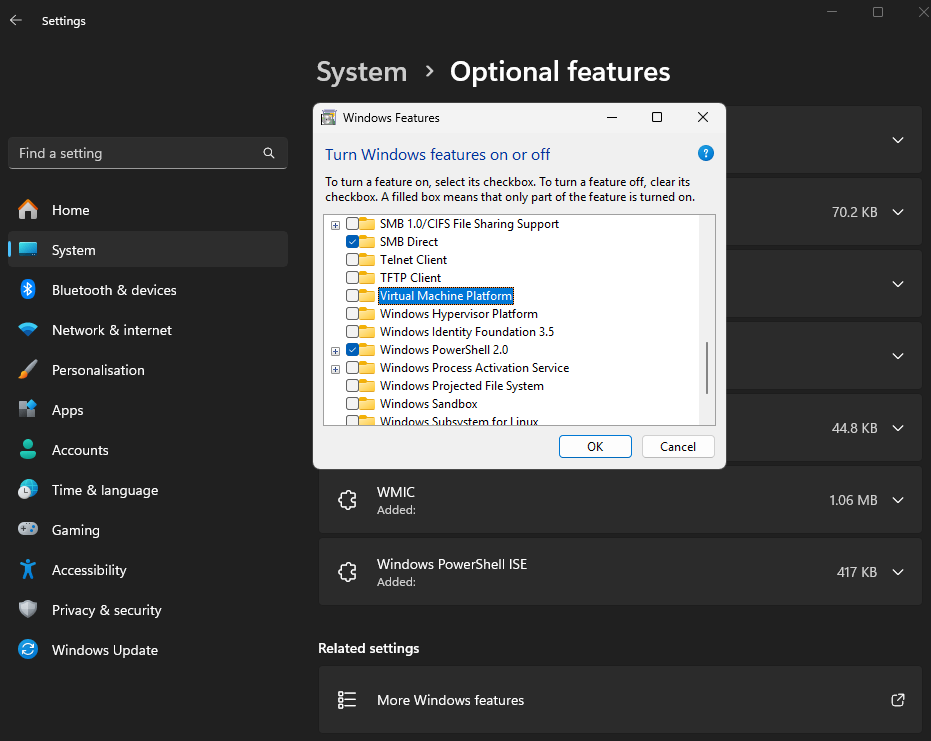
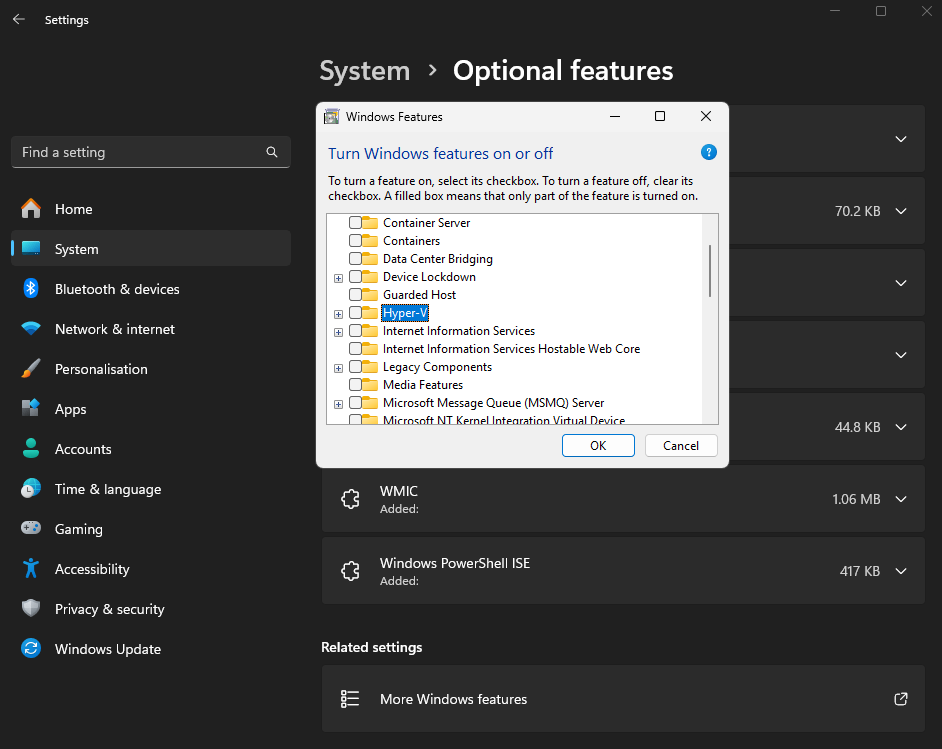
If you are not using virtual machines on your PC, you should disable the built-in Windows support for the hypervisor (Hyper-V) and virtual machines in general to improve performance.
Go to Settings -> System -> Optional Windows Features and there turn off Virtual Machine Platform and Windows Hypervisor Platform (Hyper-V)
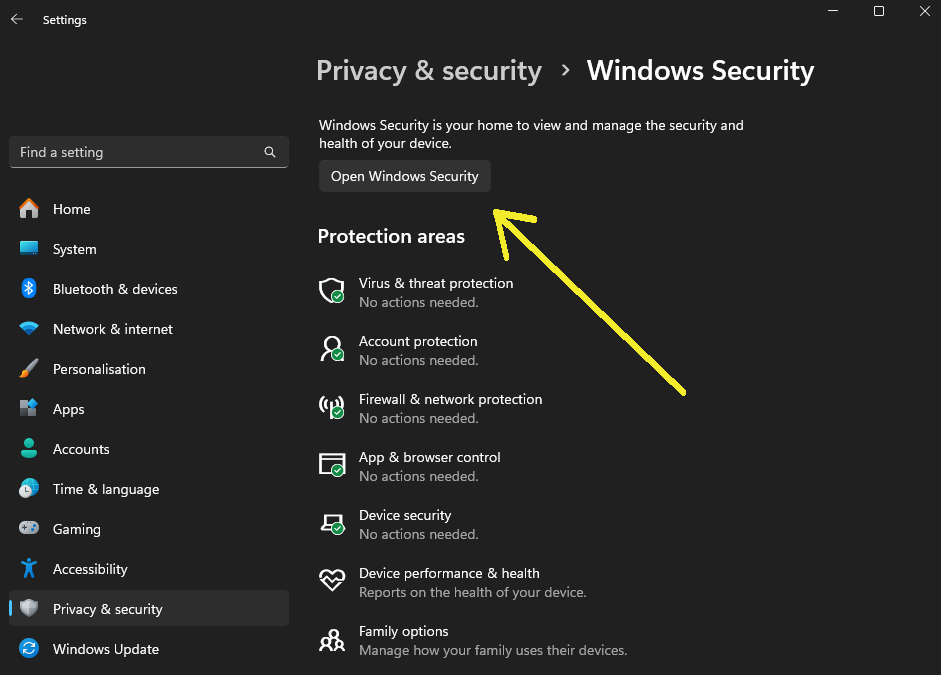
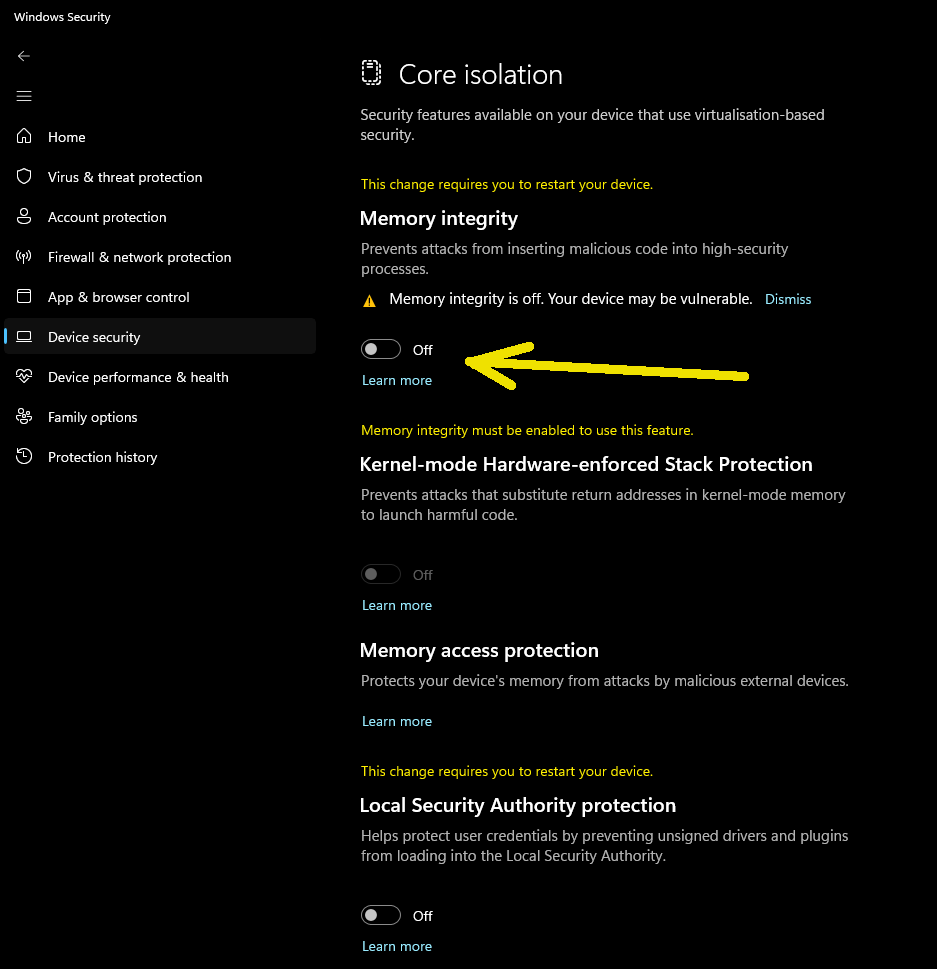
Disabling Windows Core Isolation Memory Integrity, along with disabling virtual machine support, can give you up to 5-10% more FPS. However, while turning off support for the virtual machine platform is no big deal, turning off memory integrity is a long-term risk if you install drivers from uncertified providers. But as long as you use only automated Windows updates, or using the manufacturers softwares for auto-updates you will be fine.
To stay on the safe side I recommend to disable it only for your gaming sessions and re-enable it afterwards.

Trivia
The effect is because of the implemented Denuvo Anti-tamper. Denuvo is constantly checking core related stuff - having the security turned off allows Denuvo to work faster. I am not happy about that either. I hate Denuvo.
Performance Tip 9: Cap FPS
You might wonder: why should I cap the FPS if I have little FPS to begin with?
Think of it as preventing fluctuations.
Some games have a tendency to spike the FPS during loading screens, for example, when there is nothing to render. While this may be harmless on high-end graphics cards, it can be compared to high blood pressure. This kind of fluctuation has a negative effect on stability, so we want to limit your FPS.
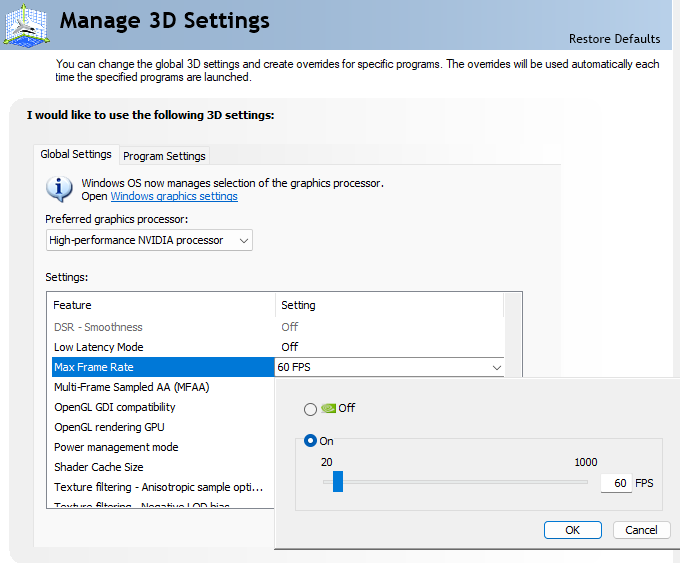
Setting the cap to 60 is fully sufficient.
If your PC can actually handle more, go for more to match your monitor's display frequency as maximum value (144 FPS if it runs on 144 Hz e.g.).
It is important to set the cap globally, e.g. via the Nvidia Control Panel, as the game internal cap can glitch out.
Performance Tip 10: Borderless Gaming
Remember the counter-intuitive tip regarding disabling windowed games optimisation? Here is another one which sounds counter-intuitive but works surprisingly well.
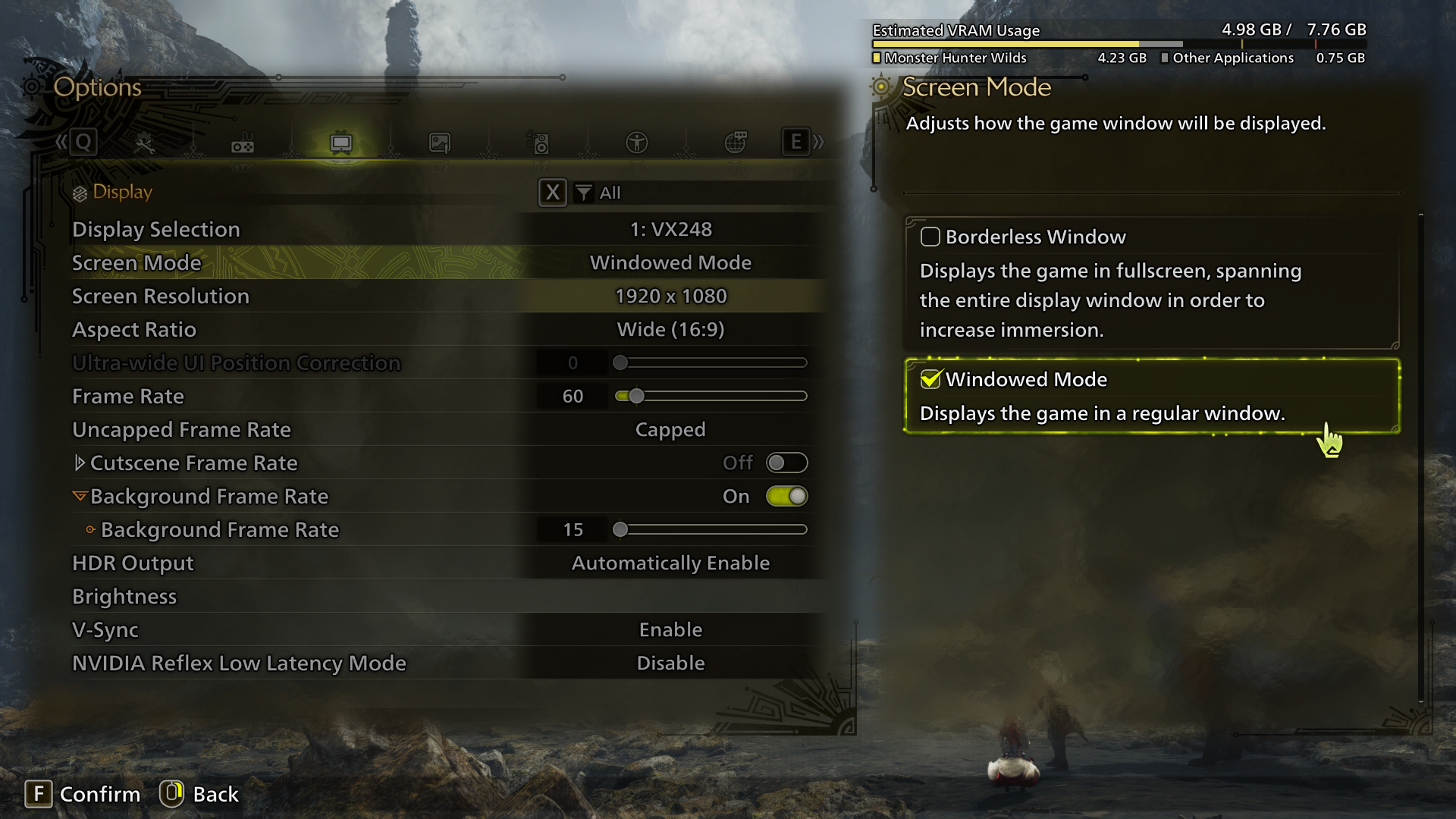
Run the game in windowed mode and use Borderless Gaming
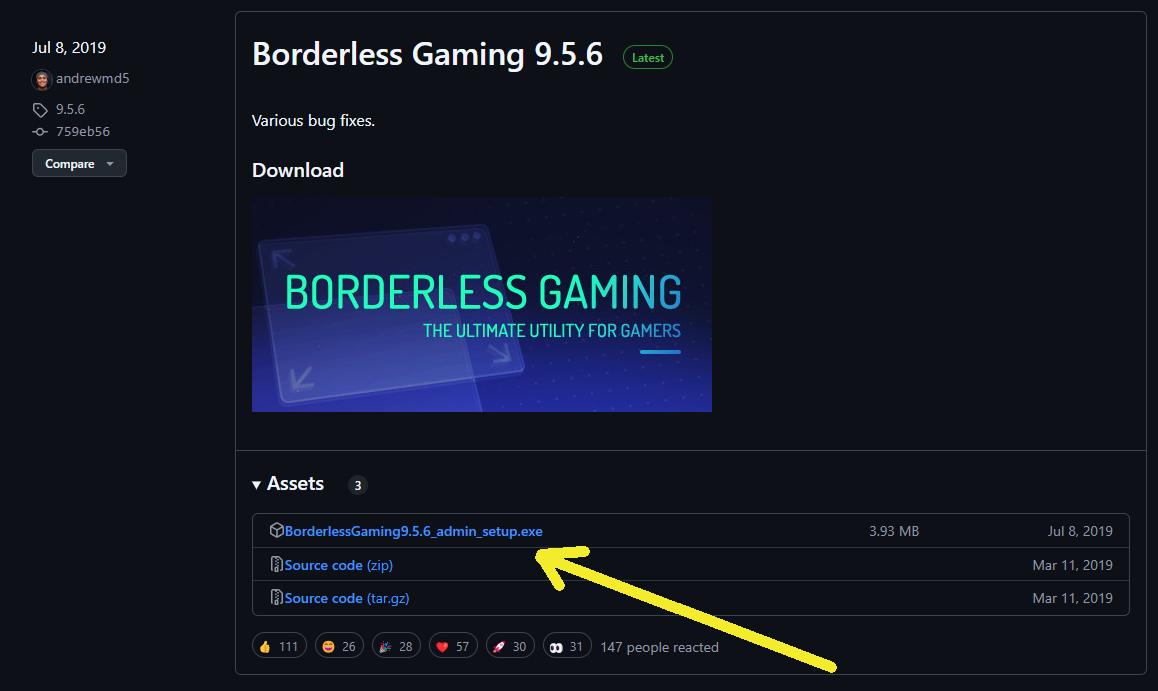
The app is available as freeware
https://github.com/codeusa/borderless-gaming/releases
After setting up the app for the first time with Monster Hunter Wilds, make sure to restart the game so it can be adjusted properly. Otherwise it looks like some parts are cut off - but that is only an adjustment issue and vanishes after a game restart, or changing the resolution of the game temporarily.
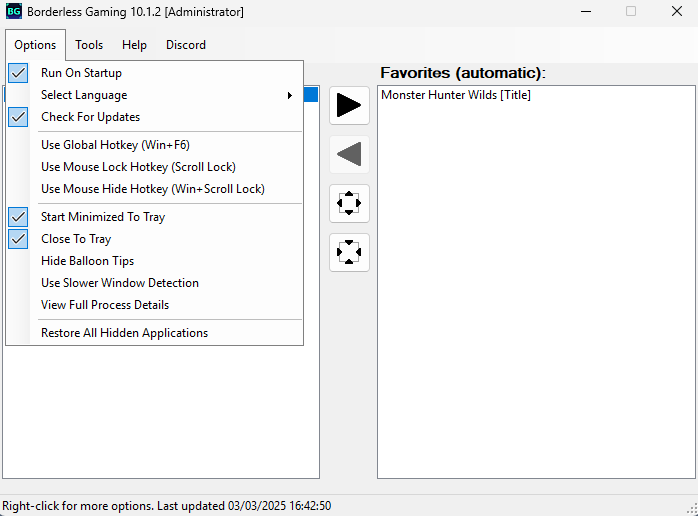
A Steam version is available if you like to support the author
https://store.steampowered.com/app/388080/Borderless_Gaming/
It sounds counter-intuitive as the game already supports borderless windowed mode and running another app on top of the game you are playing usually decreases performance. But it has been proven as reliable improving games performances.
That is because the borderless windowed mode many games try to simulate fullscreen mode, making them less stable the way their windows is forced to enlarge to be borderless.
Keeping the game in normal windowed mode and using Borderless Gaming not only has the same display effect, but also improves stability, which can lead to better FPS in general.
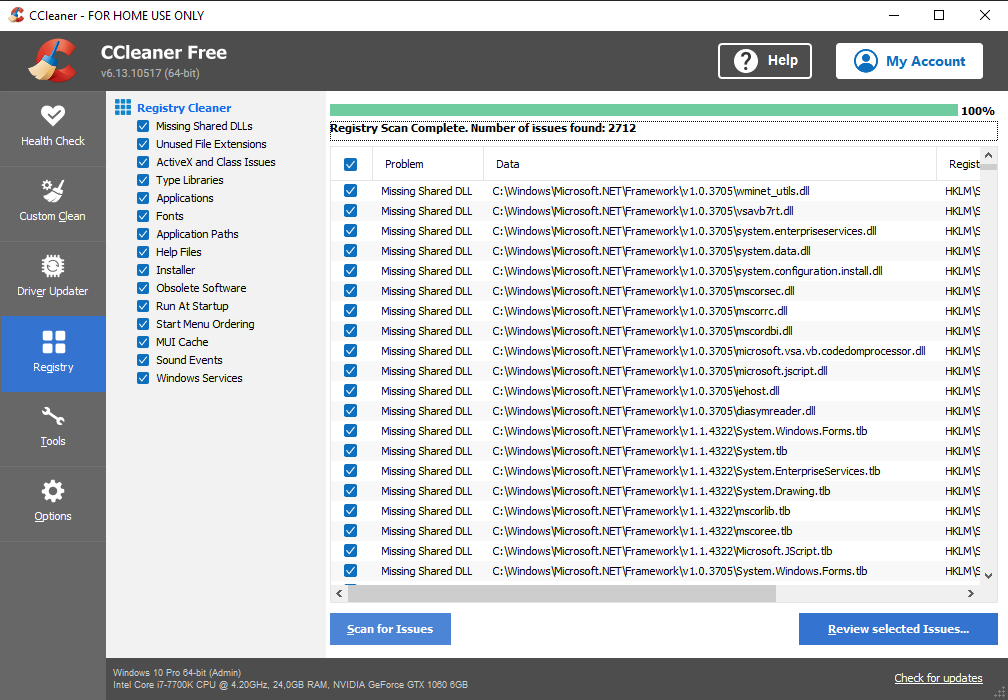
Performance Tip 11: Registry Cleanup
Most PC users can benefit greatly from cleaning up their registry and properly managing their startup and background applications. The results may surprise you!
I recommend the free version of CCleaner for the task.
A convenient free version of CCleaner (portable) that does not require installation can be found here: https://www.ccleaner.com/ccleaner/builds
Performance Tip 12: Autoruns
It is essential to ensure that only the a