 Day One Fixes
SolvedHow-toUpdated
MECCHA CHAMELEON: Invert Mouse Y-Axis Guide
Short answer
Simple guide to invert mouse y-axis until the developers add a setting for it.
Steam Community guide by Jammytoaster.
Intro
No mods or third party tools required!
Possible to invert the X-axis too.
Instructions
Open File Explorer.
- Paste the following into the address bar and press Enter:
%LOCALAPPDATA%\Chameleon\Saved\Config\WindowsIf the folder doesn't exist yet, launch the game once and close it. The required folders will be created automatically. - Right-click inside the folder and select New > Text Document
- Rename the file to:
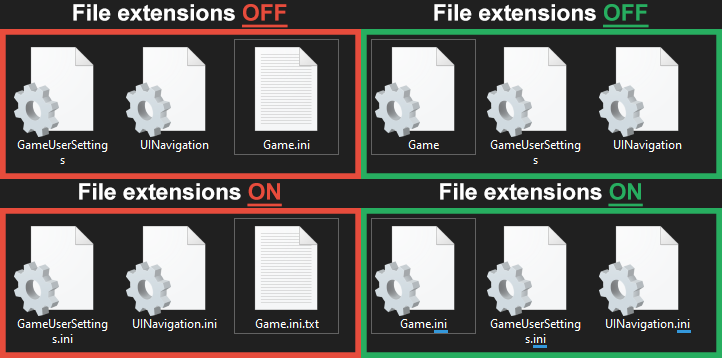
Game.iniBefore renaming the file, if you can't see file extensions, select View > Show > File name extensions in File Explorer.
The file must be a .ini file. If file extensions are hidden, Windows will name it Game.ini.txt instead, even if it appears as Game.ini. - Open Game.ini with Notepad and paste the following:
[/script/engine.playercontroller]
InputPitchScale=2.5
Want to invert the X-axis too? Paste this on a new line underneath:
InputYawScale=-2.5. - Save the file and close Notepad.
- Right-click Game.ini > Properties > check Read-only > click OK.Important: Read-only prevents the game from removing the file.
Hope this helps!
Did this help you? Ratings and comments are appreciated!