 Day One Fixes
SolvedHow-toUpdated
Upload Labs – How to Find the Data Refiner and Other Missing Nodes
Short answer
Can’t find the Data Refiner in Upload Labs after you’ve unlocked it? This guide explains the common UI issue with the scrollable build menu and shows you exactly where to look for your missing nodes.
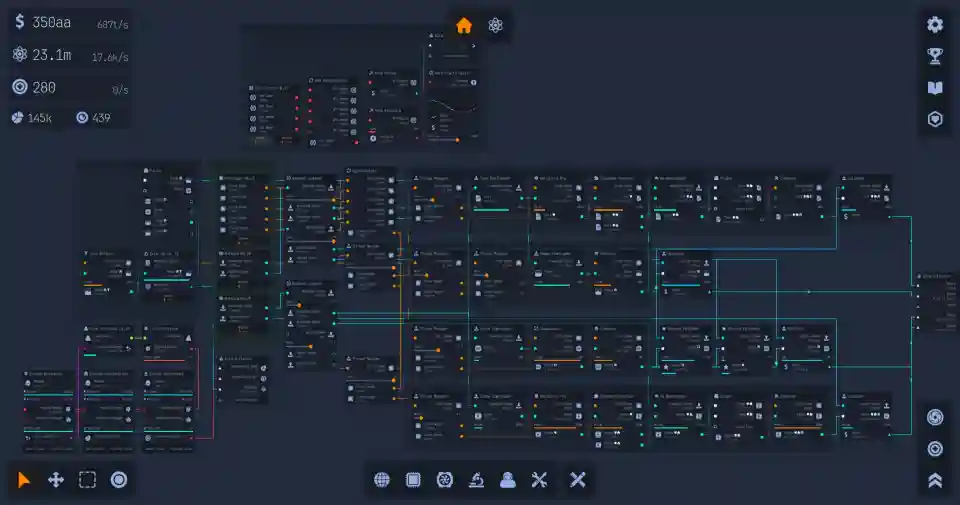
Can’t find the Data Refiner in Upload Labs after you’ve unlocked it? This guide explains the common UI issue with the scrollable build menu and shows you exactly where to look for your missing nodes.
The Number One Problem: My Unlocked Node is Missing!
It’s one of the most common and frustrating moments in Upload Labs. You grind for resources, head to the upgrade tree, and spend your hard-earned points on a cool new node like the Data Refiner or the Processor.
You go back to your setup, ready to build, but the new node is nowhere to be found in your build menu. Don’t worry, your game isn’t bugged, and you haven’t wasted your research points. The node is there; it’s just hidden by a tricky UI design.
The Solution: The Build Menu is a Scrollable Hotbar
The big secret is that the build menu at the bottom of the screen—the hotbar where you select all your nodes—is actually scrollable.
This is a massive point of confusion for new players because there are no arrows or visual cues to let you know that you can scroll. You can either click and drag the bar with your mouse or use your scroll wheel to reveal all the nodes you’ve unlocked.
Where to Look: The Difference Between Early and Late Game Nodes
Now for the pro tip: the game adds new nodes to different ends of the hotbar depending on when you unlock them. Knowing where to look will save you a lot of time.
Early Game Nodes (like Processor/GPU): When you unlock your first advanced components like the Processor and GPU, the game adds them to the far left of the build menu. You will need to scroll left to find them.
Late Game Nodes (like Data Refiner): As you progress further into the tech tree and unlock later-game items like the Data Refiner, these nodes are added to the far right of the build menu, past all your starting items.
Step-by-Step: Finding Your Data Refiner
So, you just unlocked Data Refinement and need your node. Here’s exactly what to do.
- Make sure you’ve actually purchased the “Data Refinement” upgrade from the research tree.
- Go to your build menu (the hotbar at the bottom of the screen).
- Using your mouse, click and drag the hotbar to the left to reveal the new nodes that have been added to the right.
- Your shiny new Data Refiner node should be waiting for you at the far right end of the list.
Quick Troubleshooting Guide for Missing Nodes
Here’s a quick cheat sheet for the next time you unlock a node and can’t find it.
| If you can’t find… | Try this… |
|---|---|
| The Processor or GPU | Scroll all the way to the LEFT in the build menu. |
| The Data Refiner | Scroll all the way to the RIGHT in the build menu. |
| Any other unlocked node | Scroll both left and right; it’s probably hiding at one of the ends! |