 Day One Fixes
Known issueHow-toUpdated
PUBG: BATTLEGROUNDS: Player Fixes, Tips and Guides
Short answer
Player reports, fixes and video guides for PUBG: BATTLEGROUNDS, collected from Steam and YouTube.
https://steamcommunity.com/sharedfiles/filedetails/?id=3373192202
https://steamcommunity.com/sharedfiles/filedetails/?id=3374438041
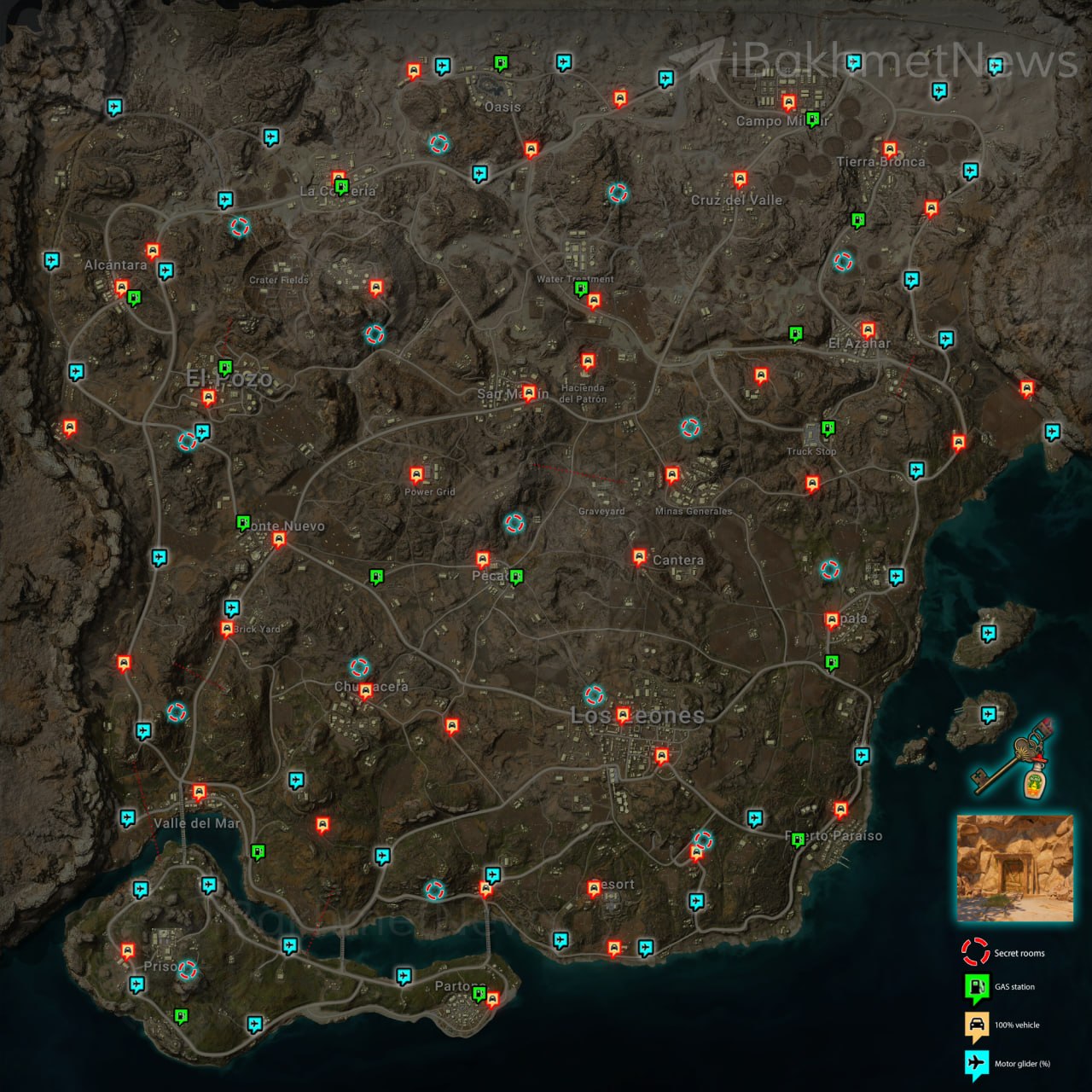
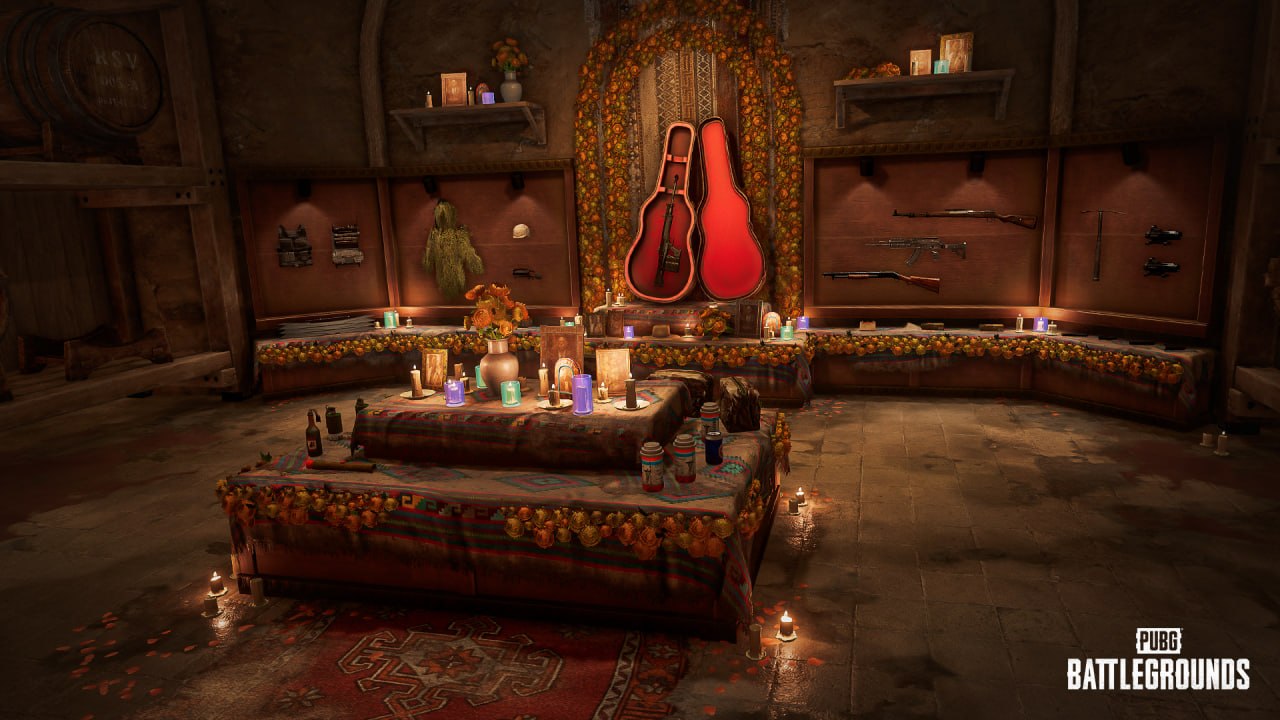
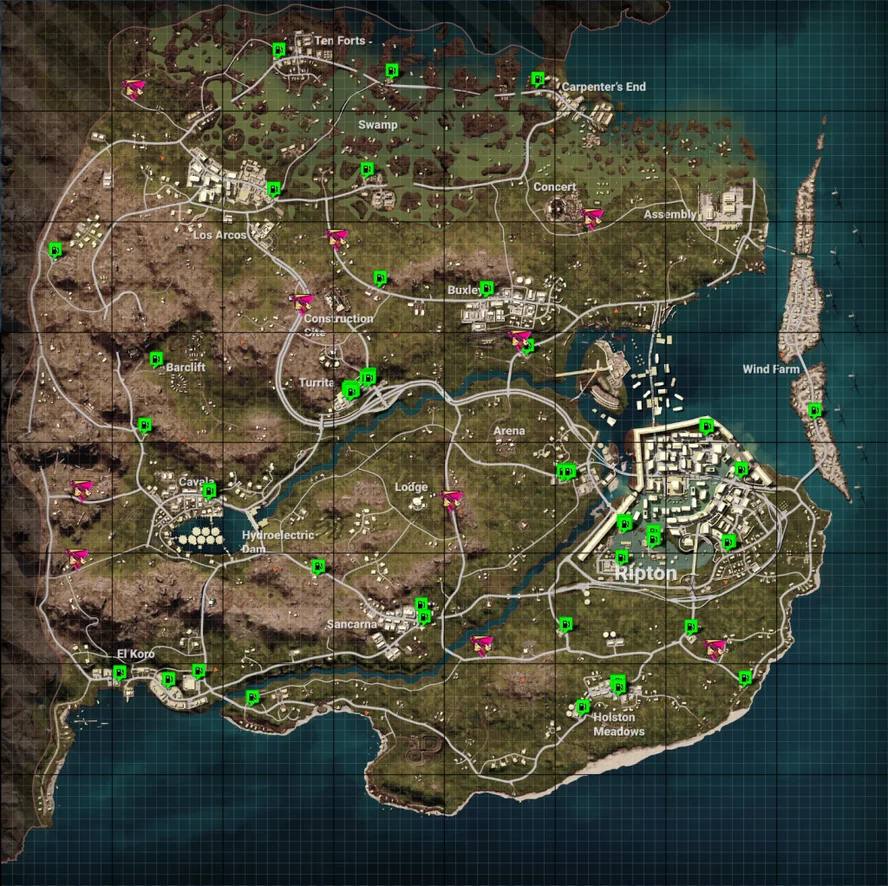
All Secret Rooms Locations + Miramar UPDATE
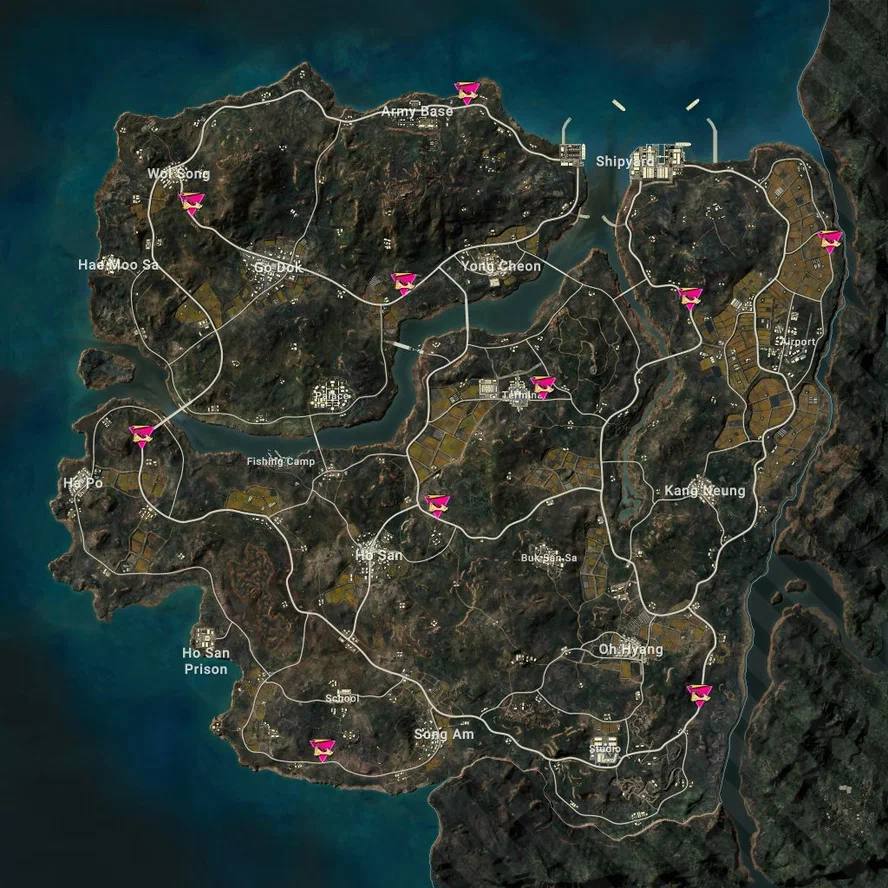
Erangel Secret Rooms
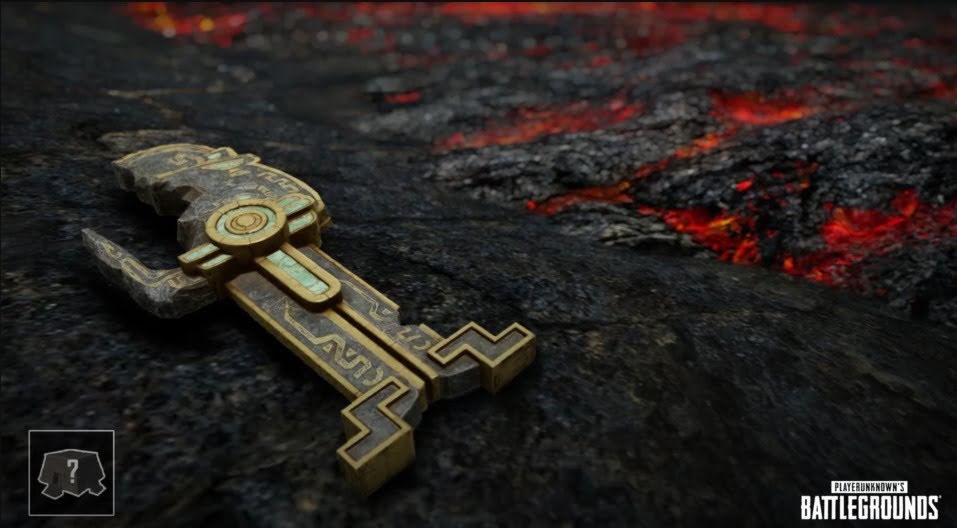
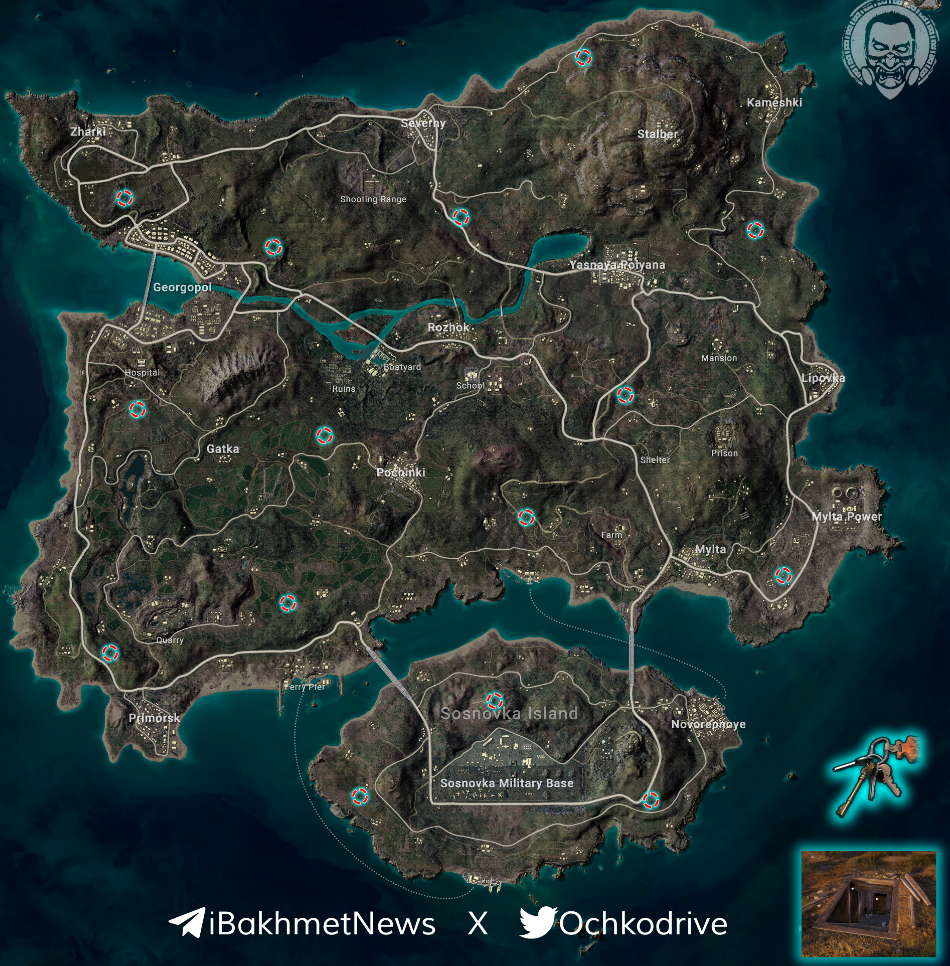
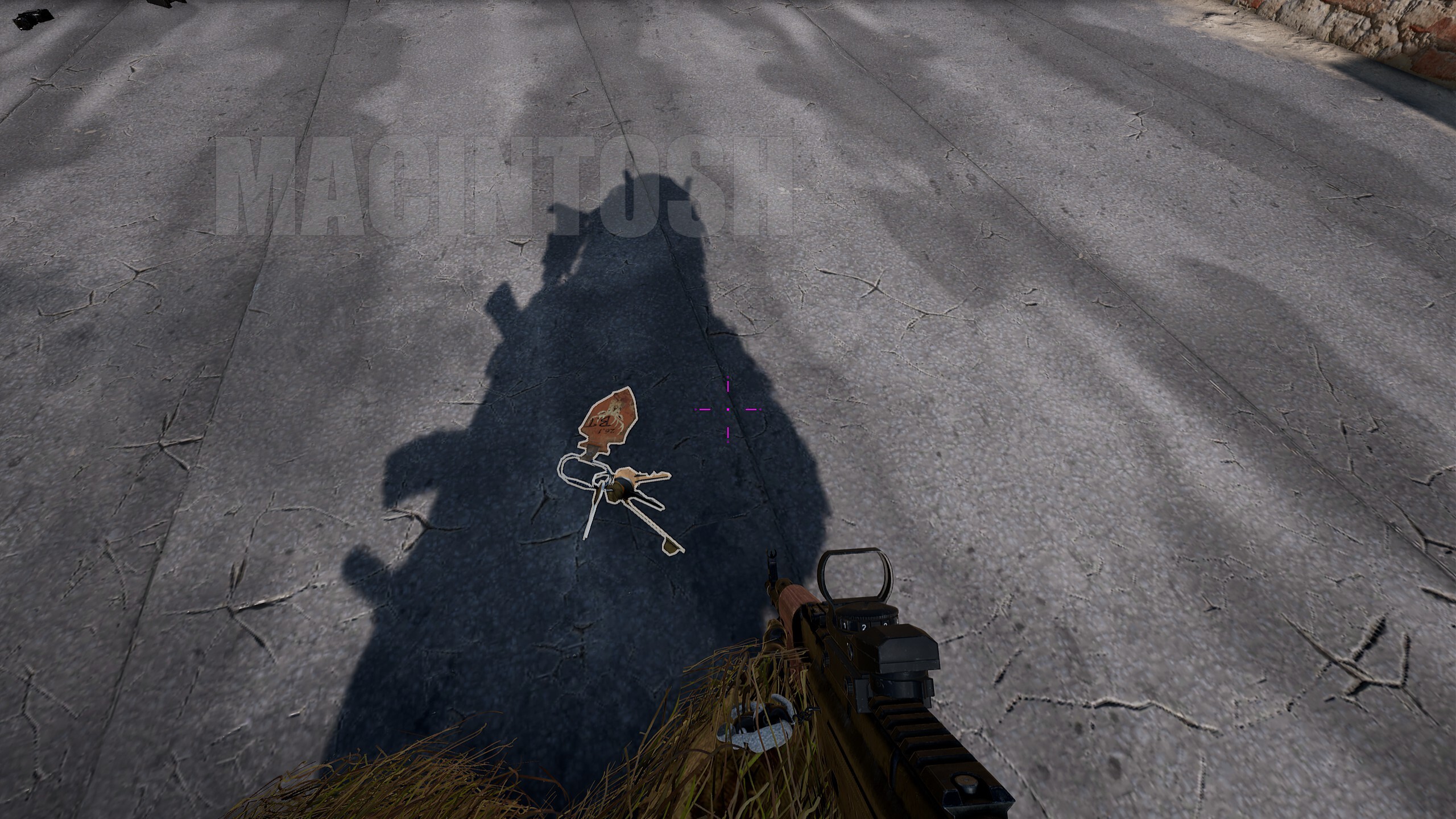
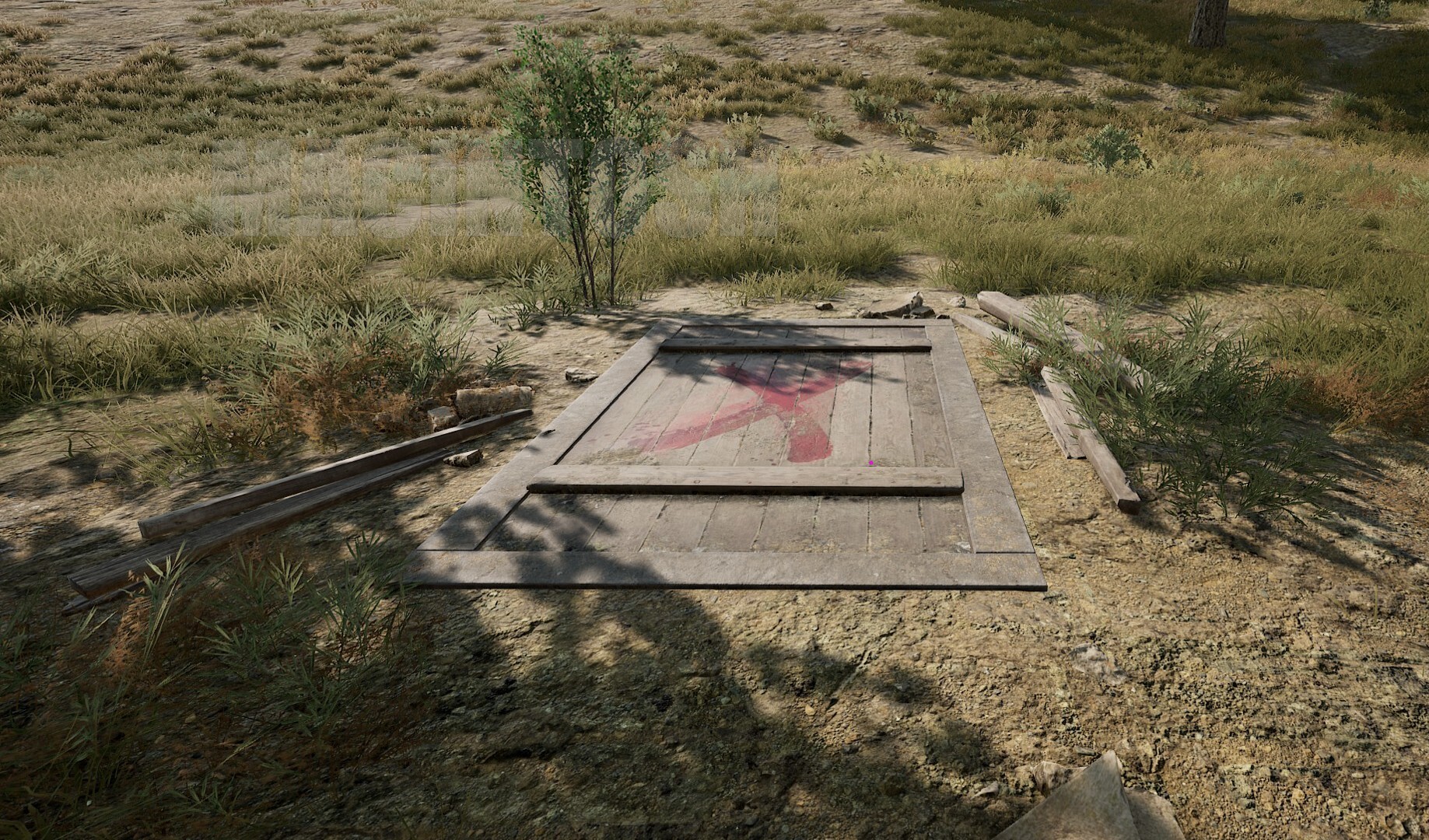
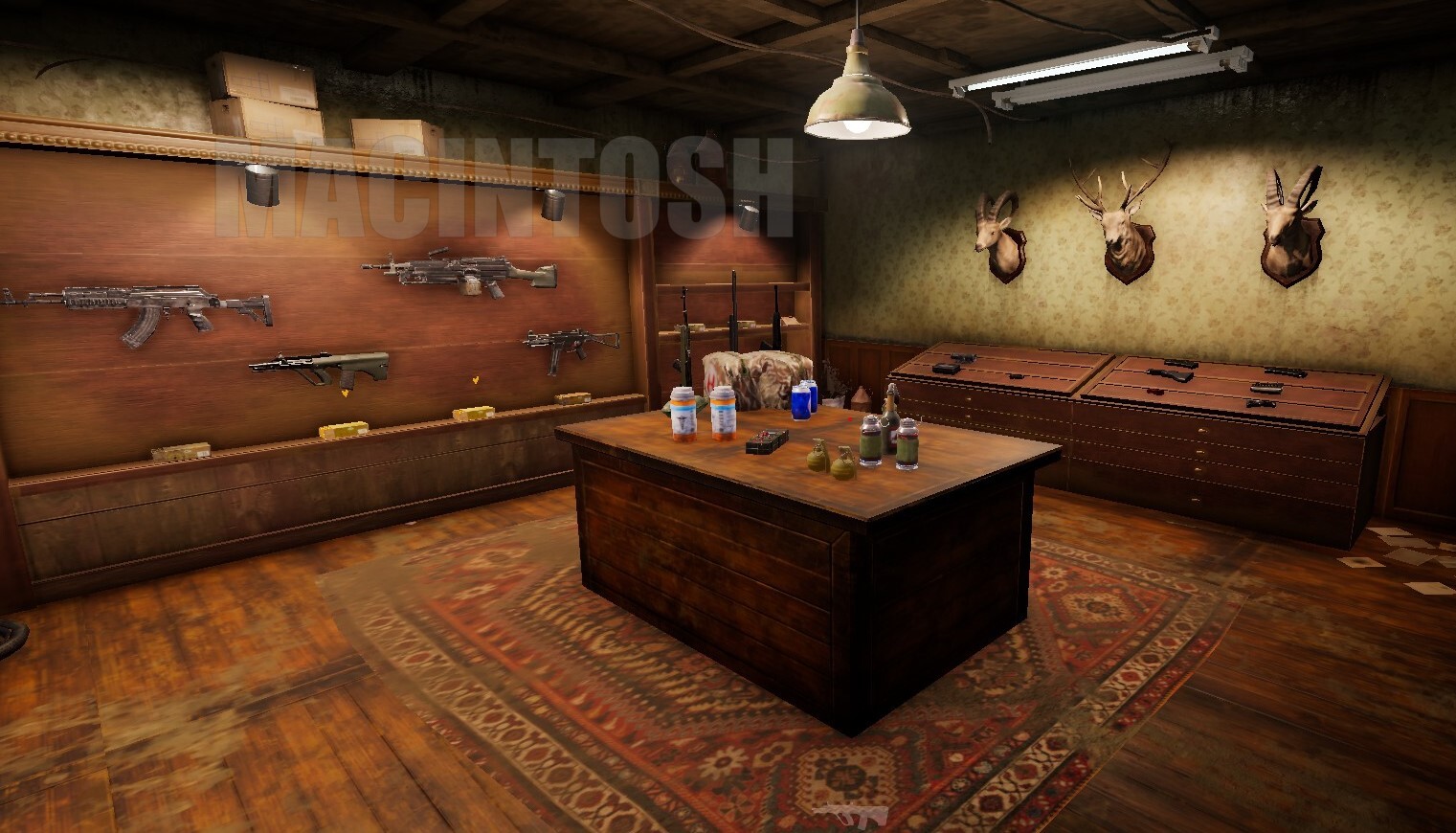
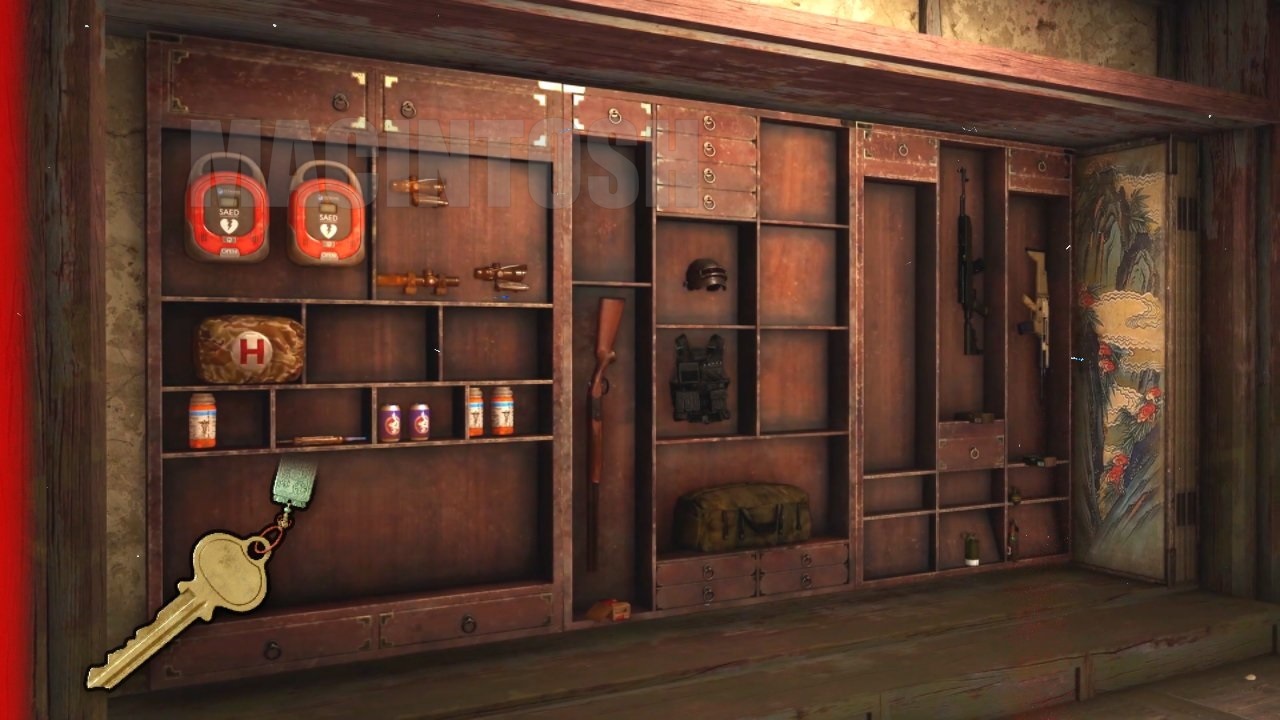
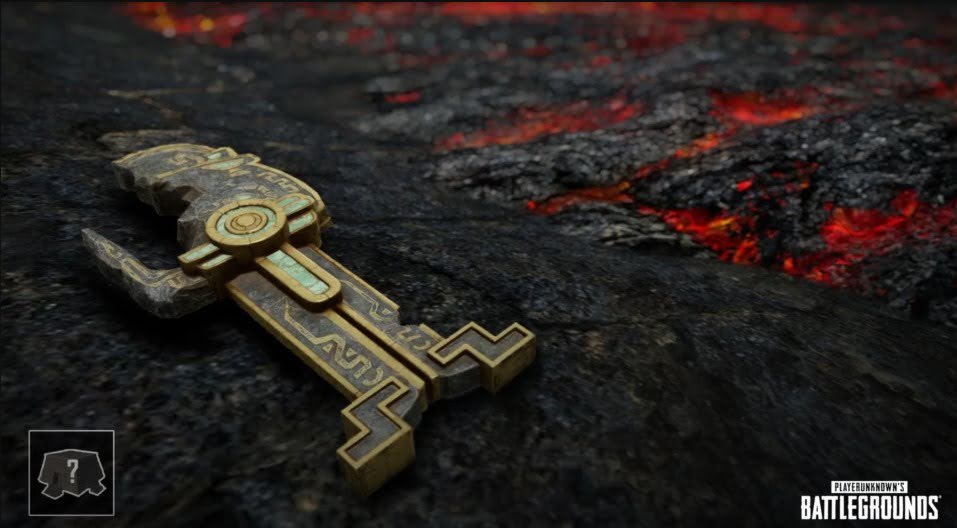
The secret rooms on Erangel are hidden behind a wooden barrier marked with a red cross, which can be destroyed with any weapon or vehicle. The keys that open the secret room will spawn randomly all over the map. Secret rooms store valuable loot, from level 3 gear and airdrop weapons to a large number of boosters, mid kits and a rescue balloon.
Miramar Secret Rooms
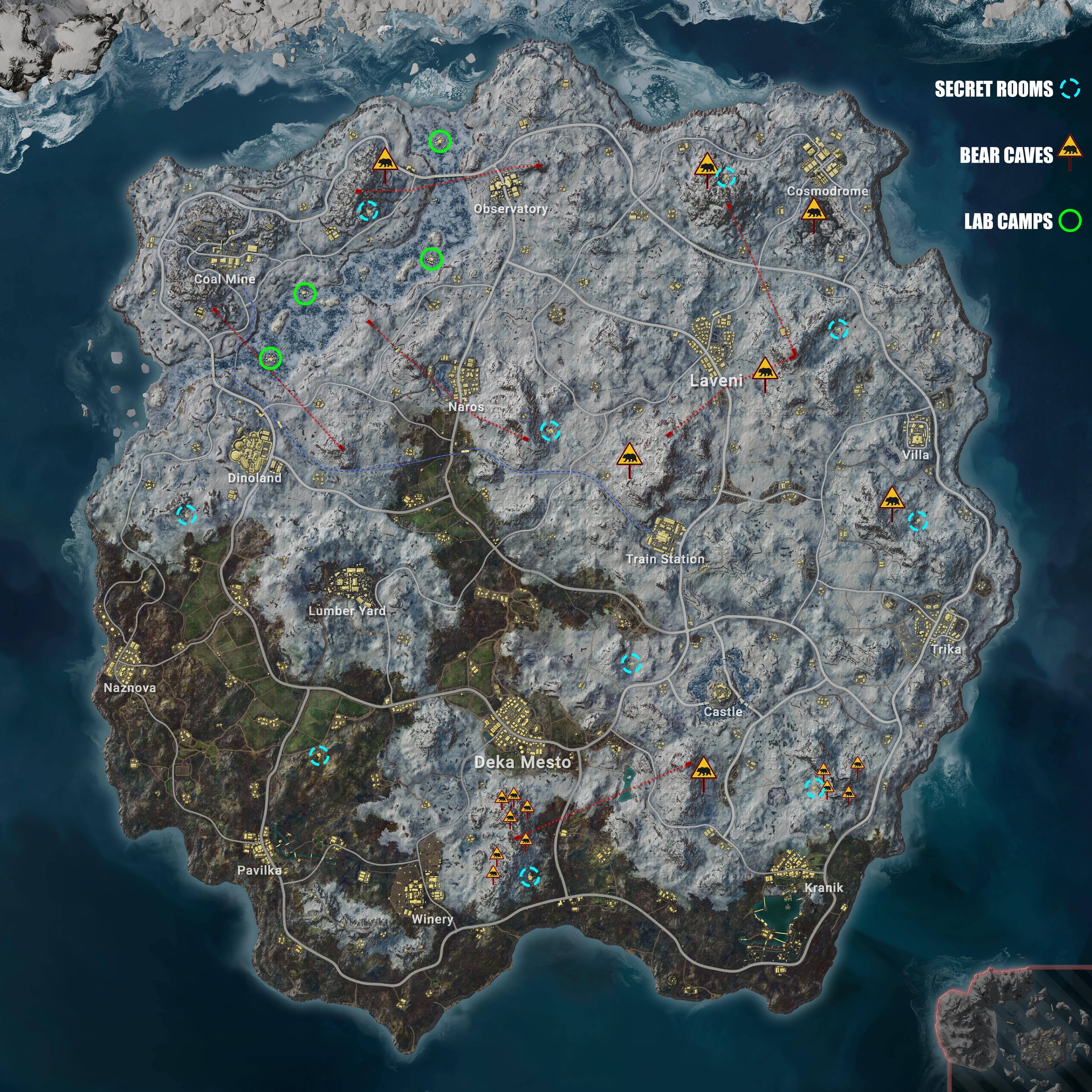
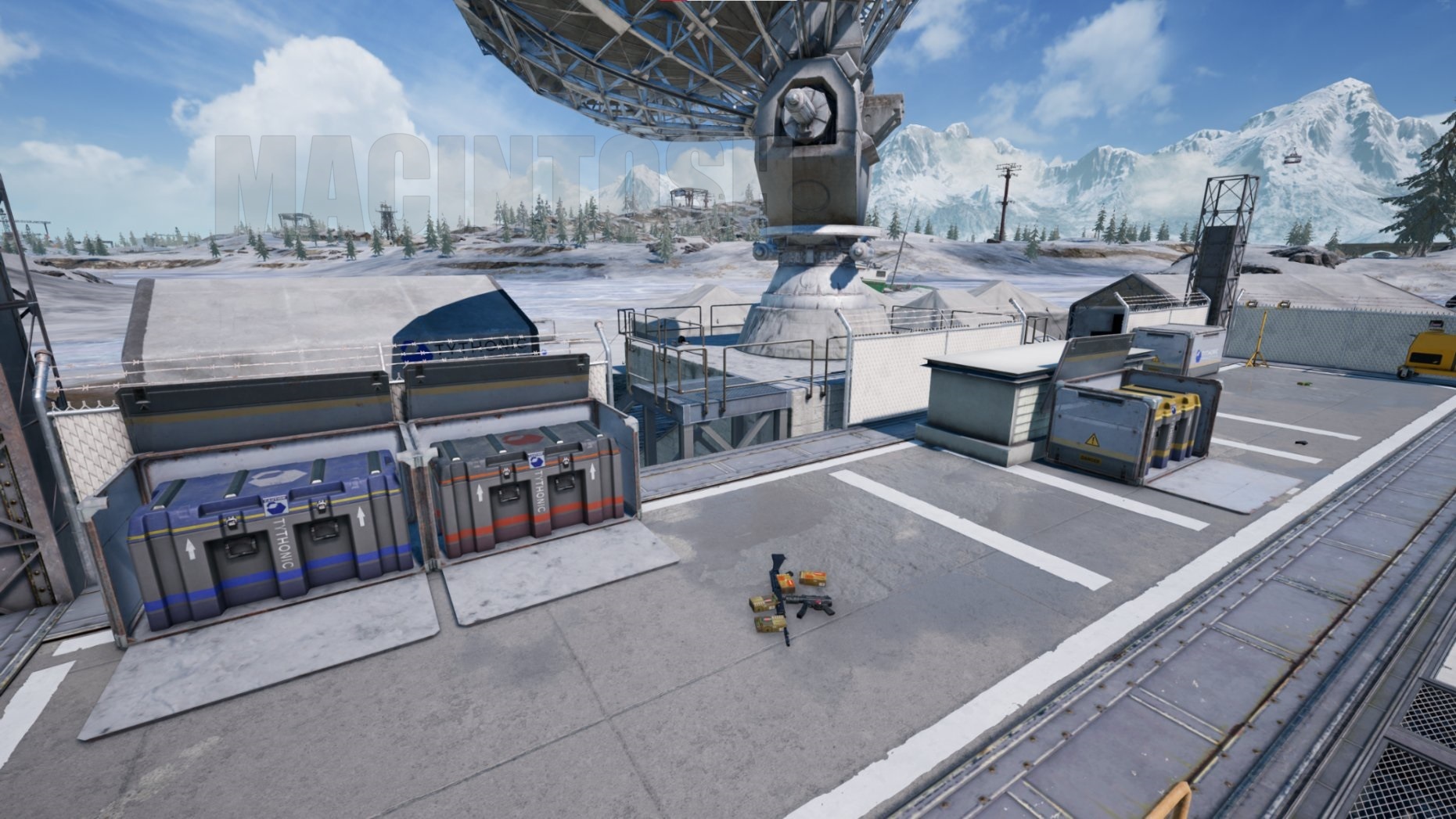
Vikendi Secret Rooms and Lab Camps
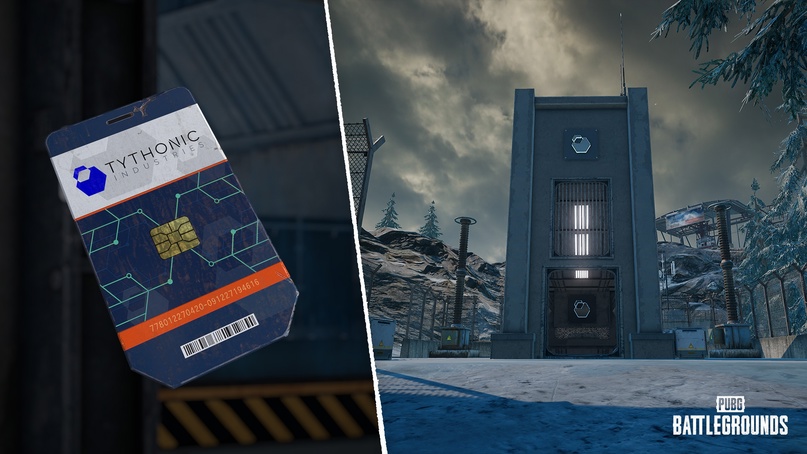
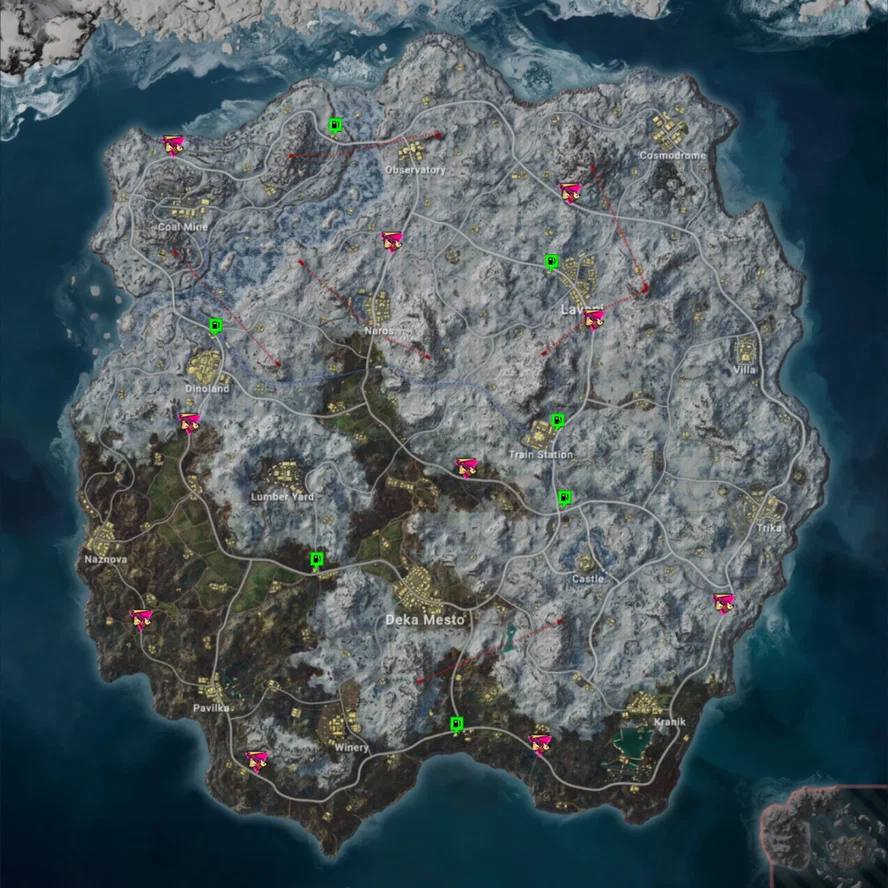
— Blue markers indicate secret rooms that can be opened with a key card.
— The locations of the bear caves with loot are marked with yellow triangles.
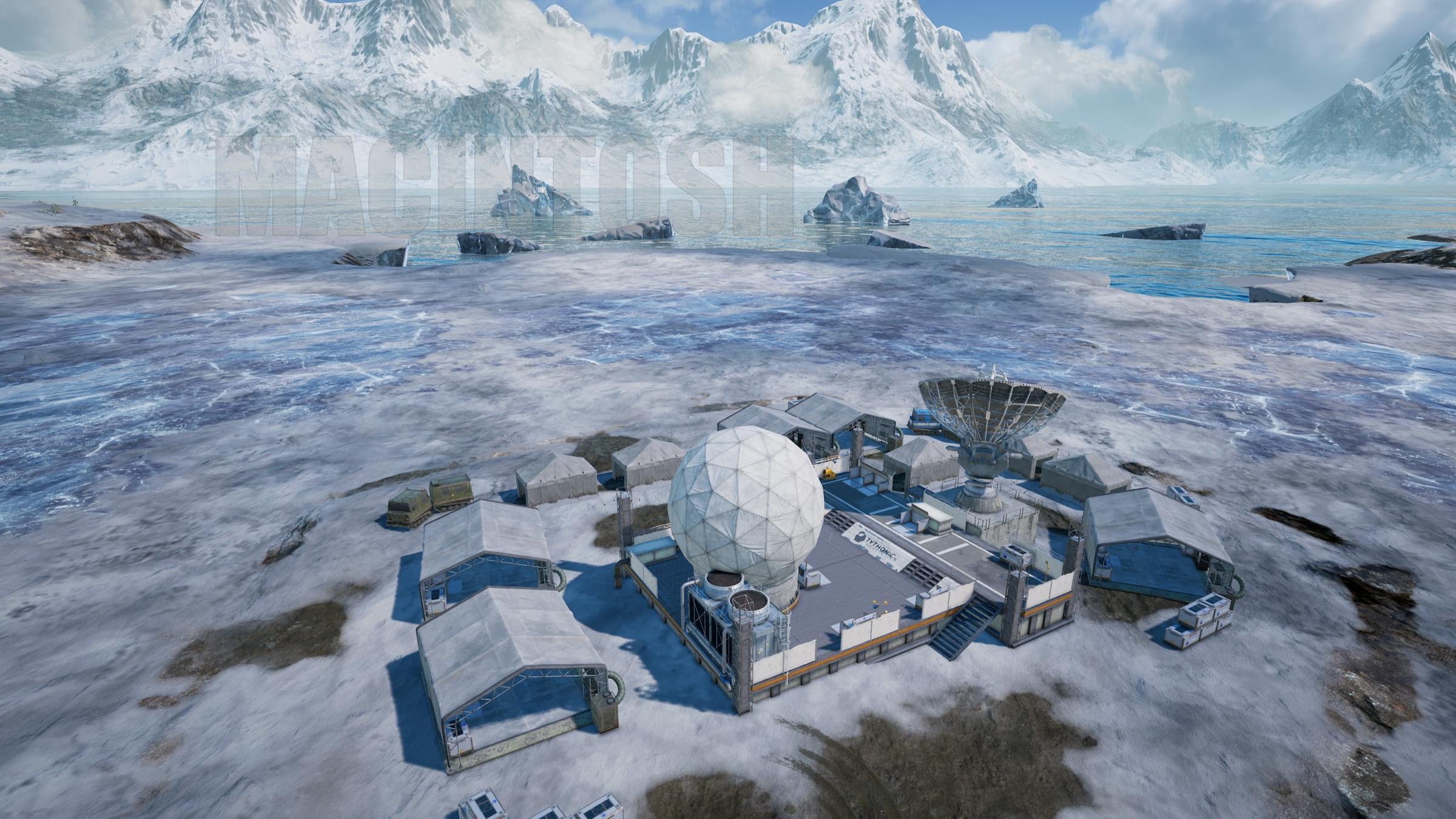
— Green markers indicate lab camps with a supply boxes.
— The yellow supply boxes contain boosters, throwing weapons, M79, or Level 3 gear.
— The red supply boxes contain the weapons available on Vikendi. There is also a chance to get a weapon from the airdrop.
— The blue supply boxes contain the modules available on Vikendi.
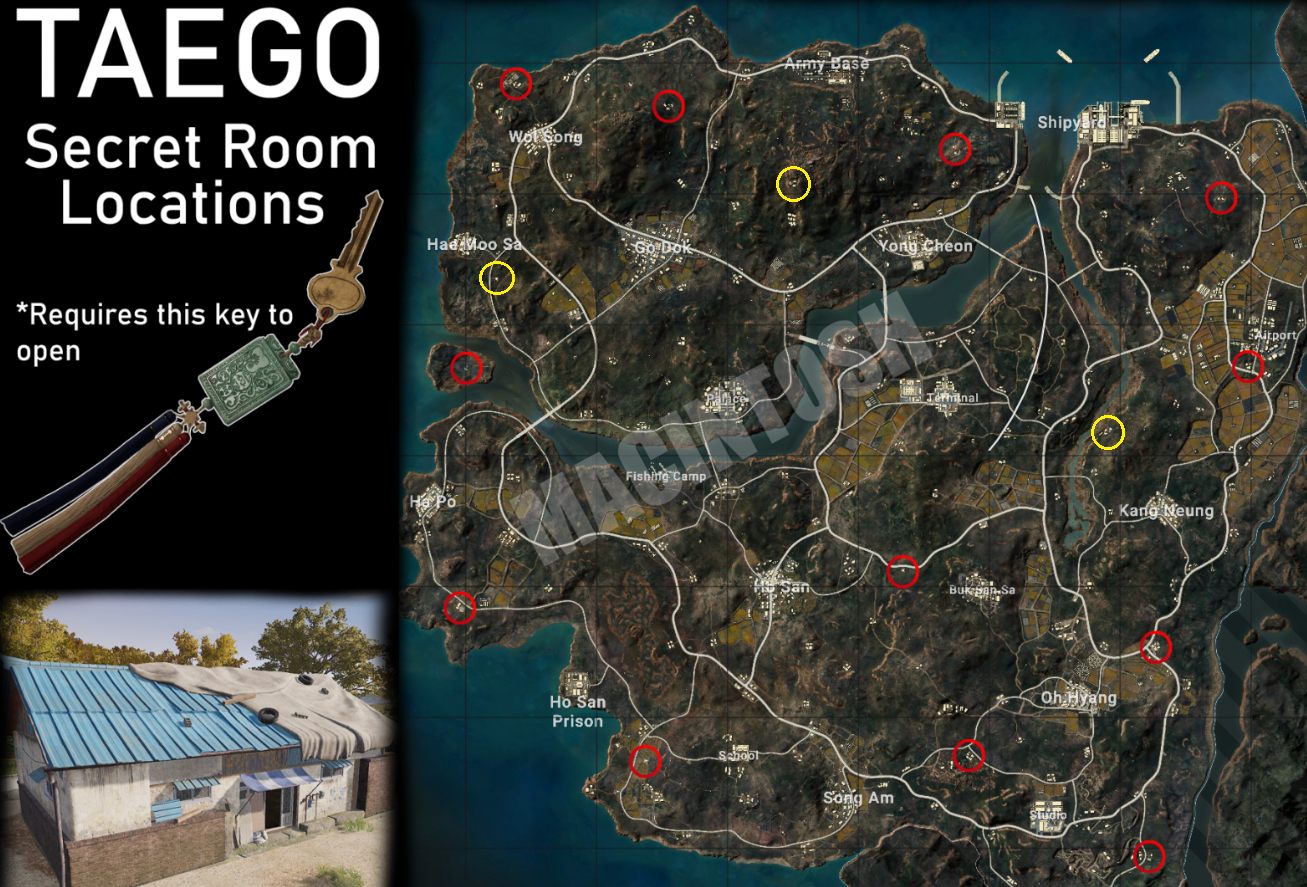
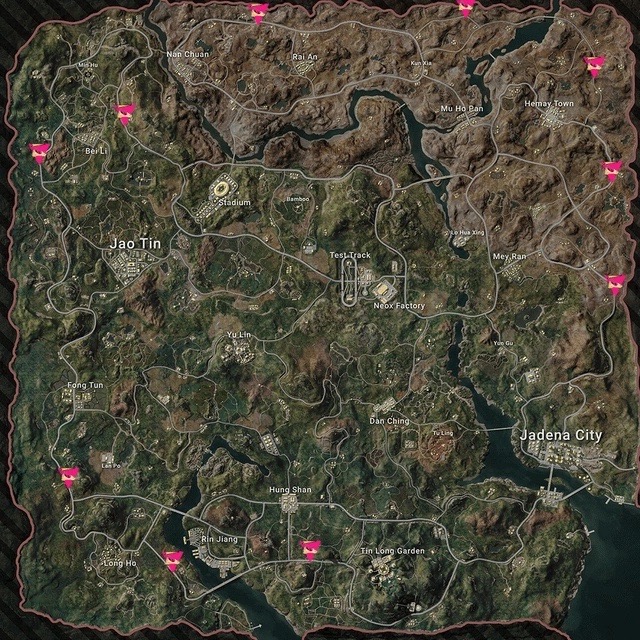
Taego Secret Rooms
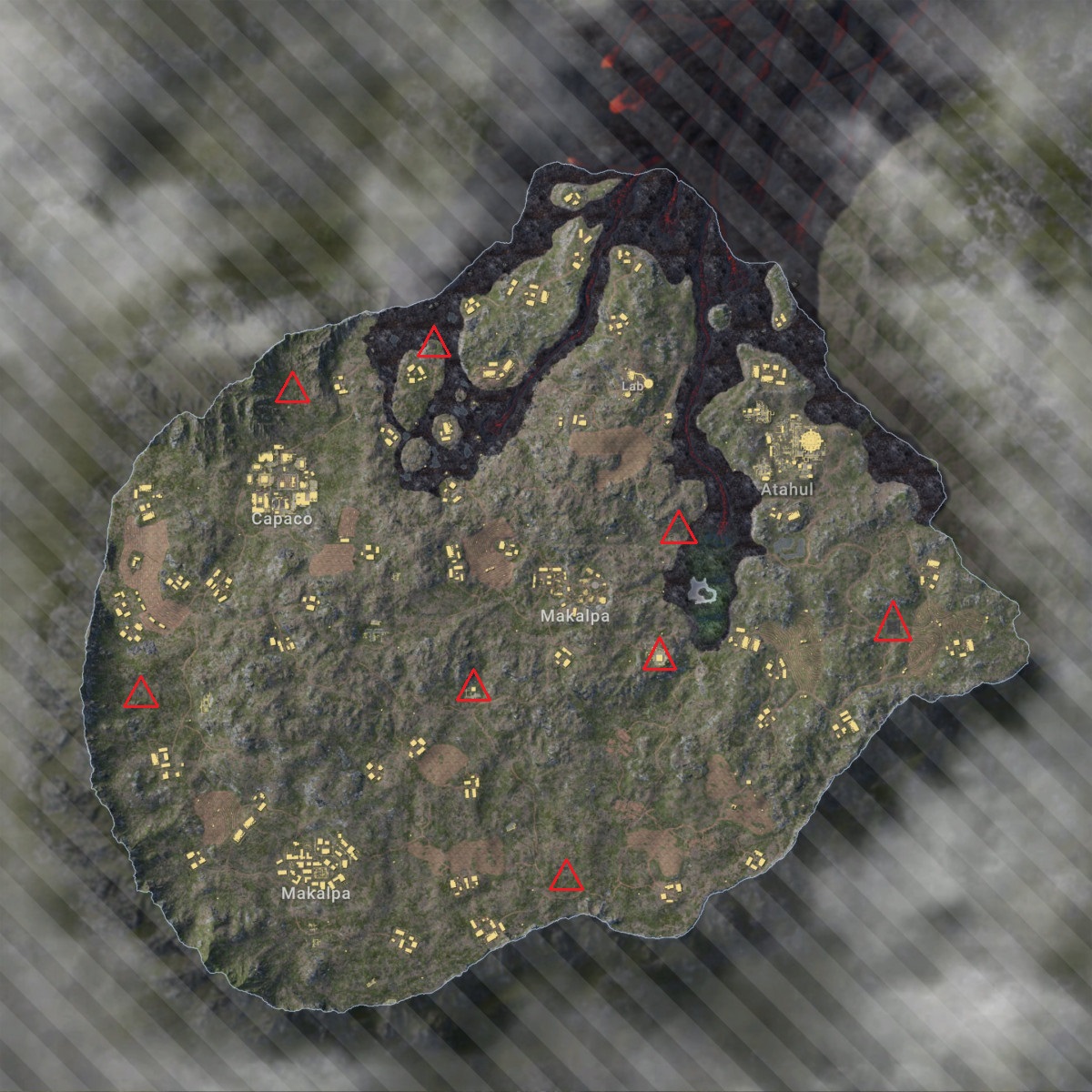
The map of the secret rooms on Taego has been updated. Three new rooms have been added with a yellow marker.
Rondo Secret Rooms
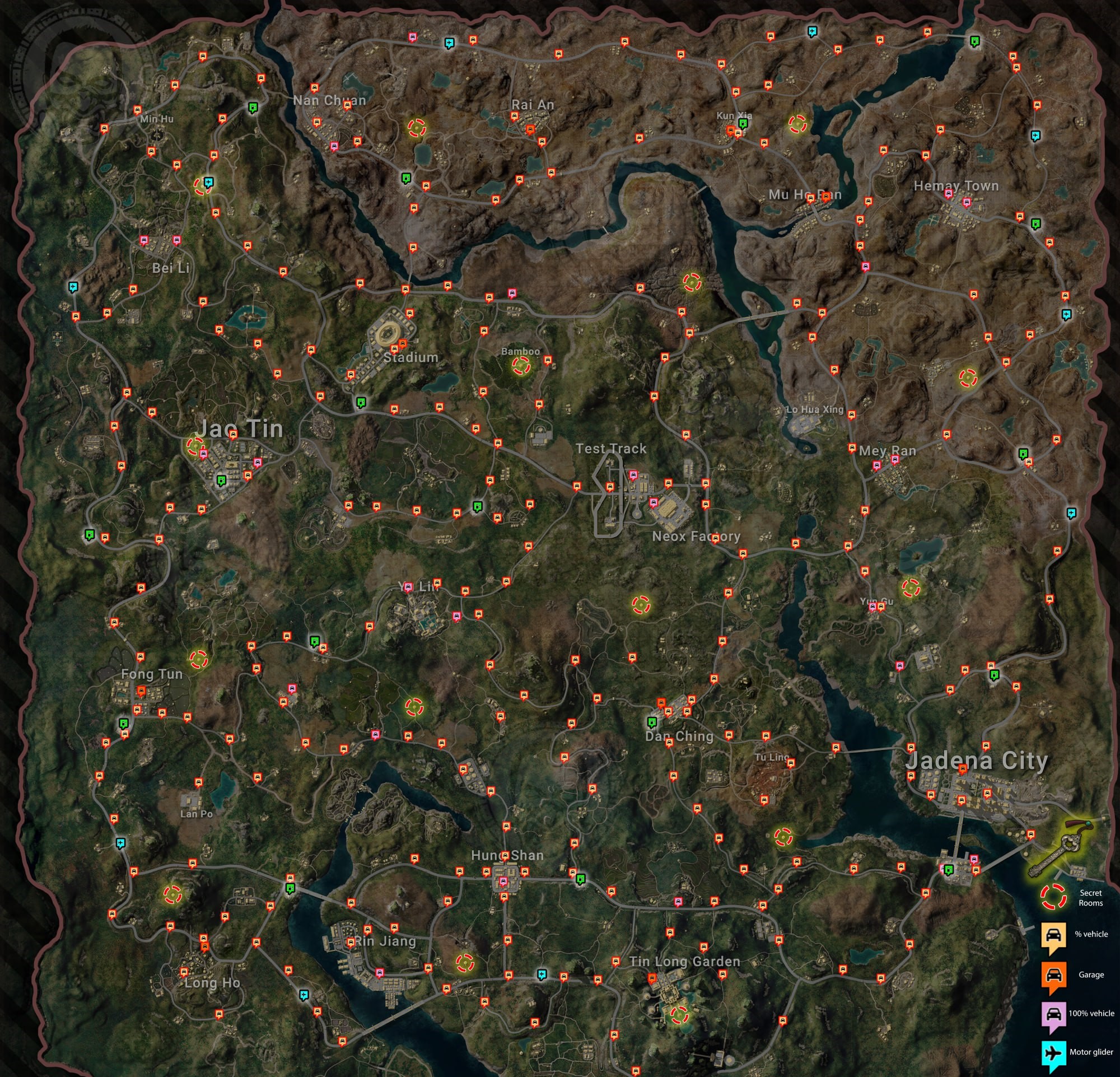
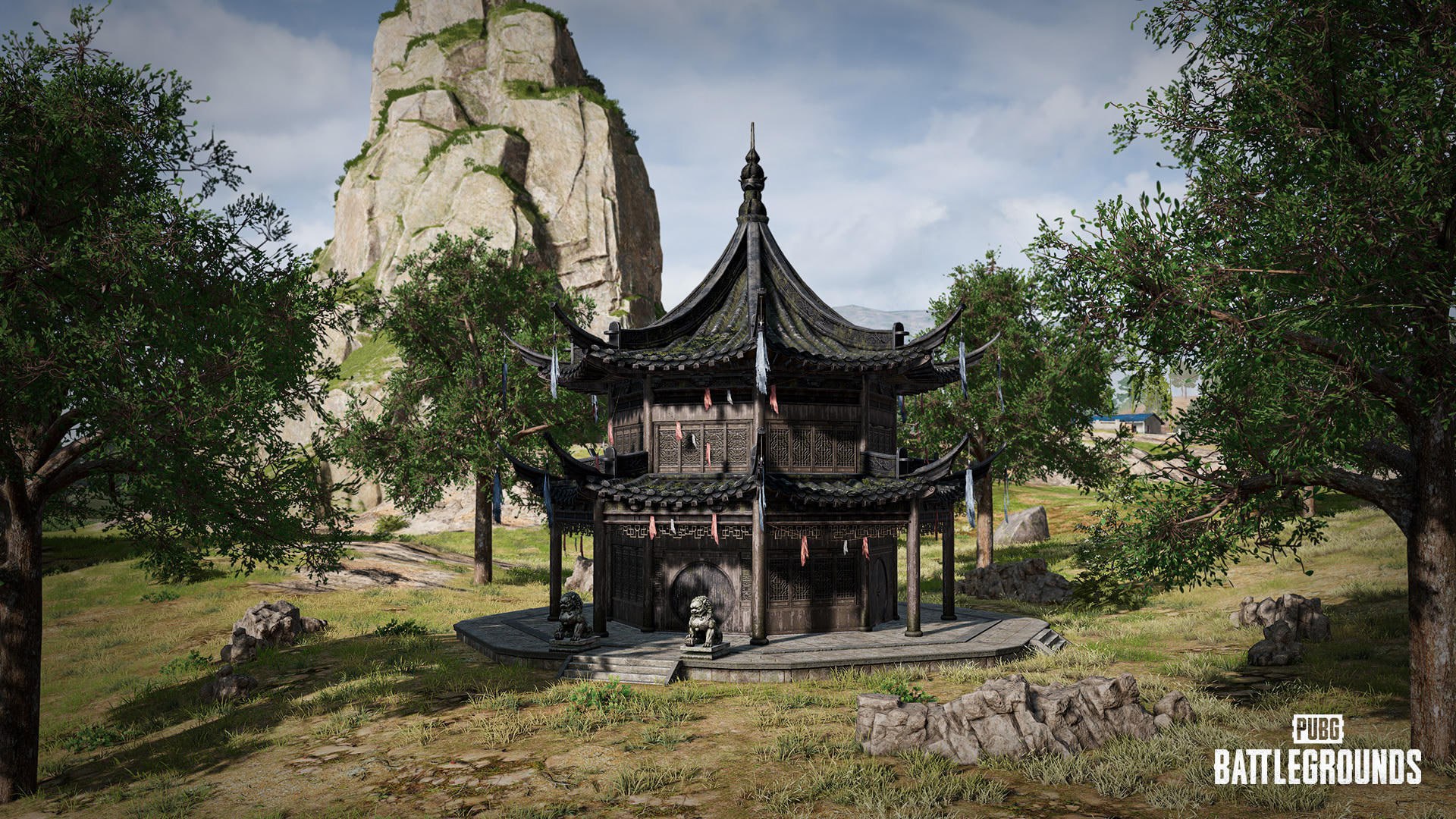
Deston Secret Rooms
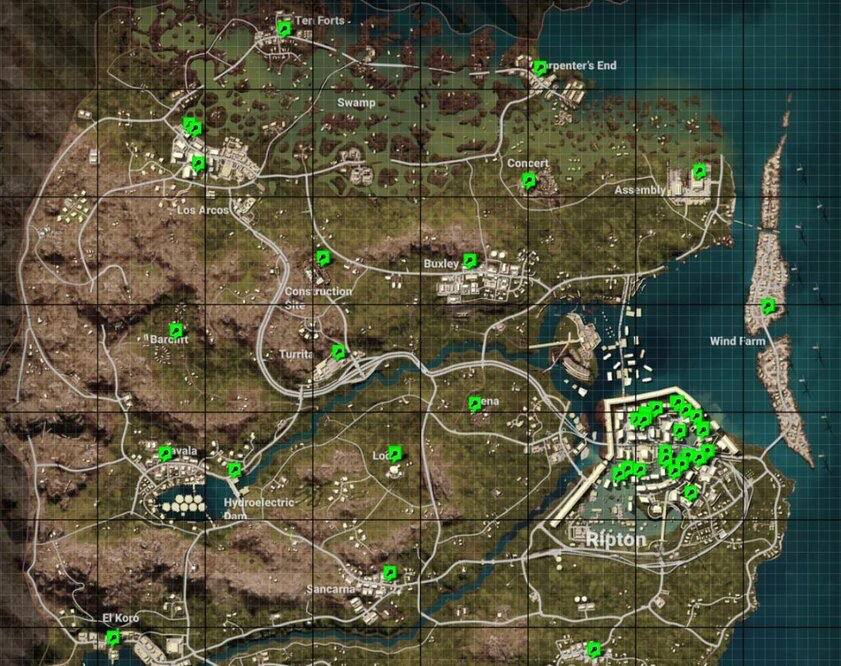
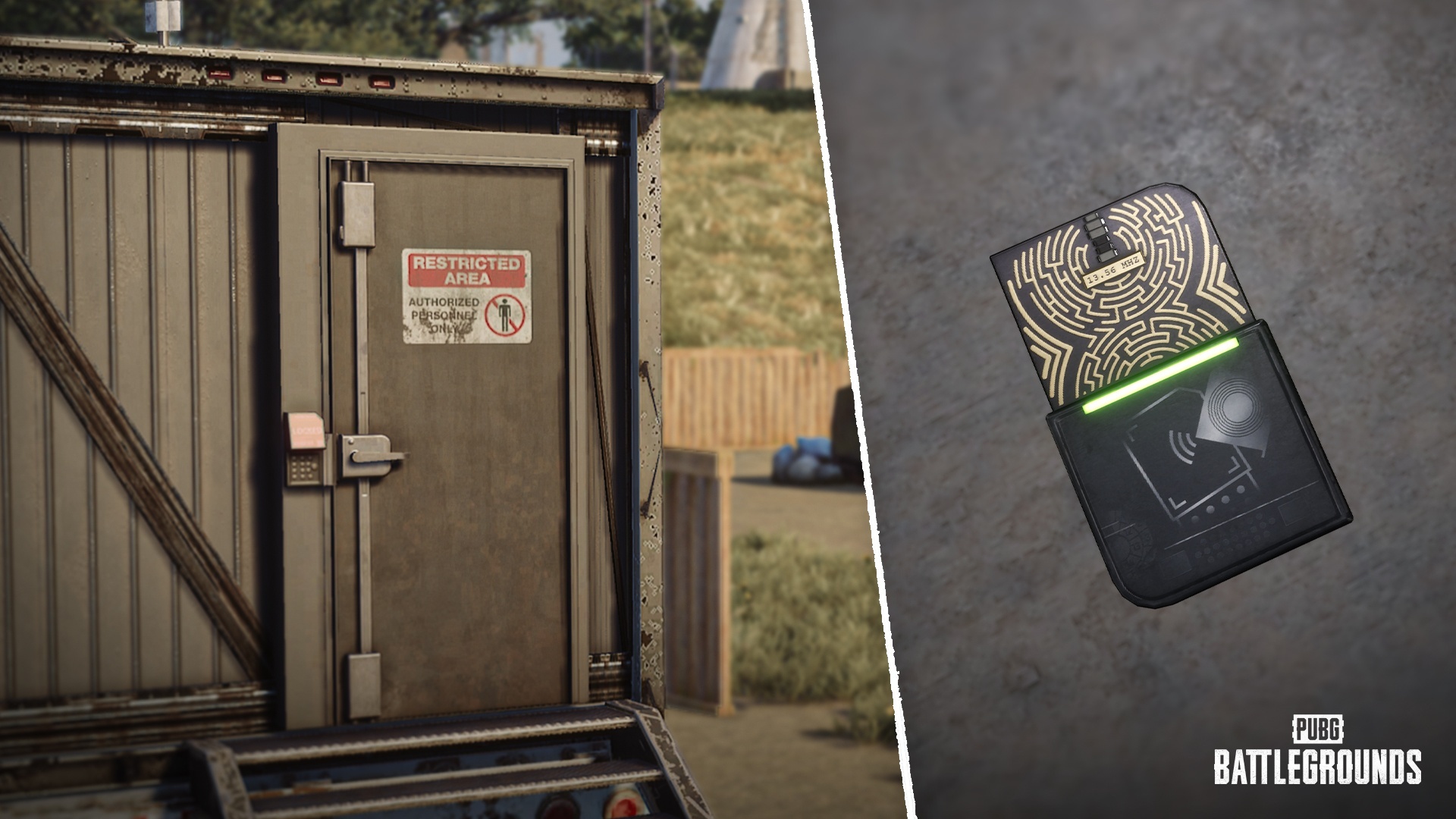
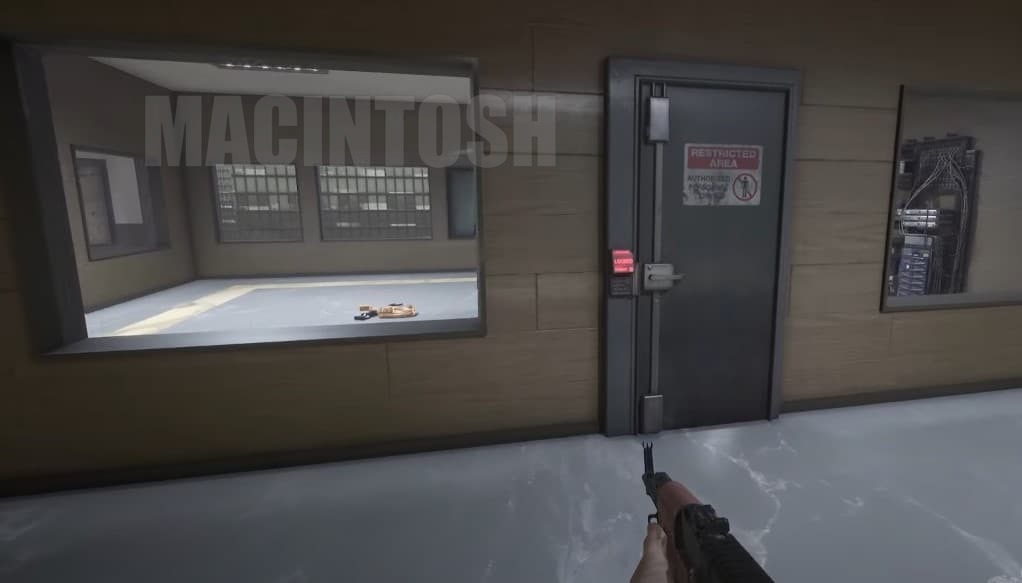
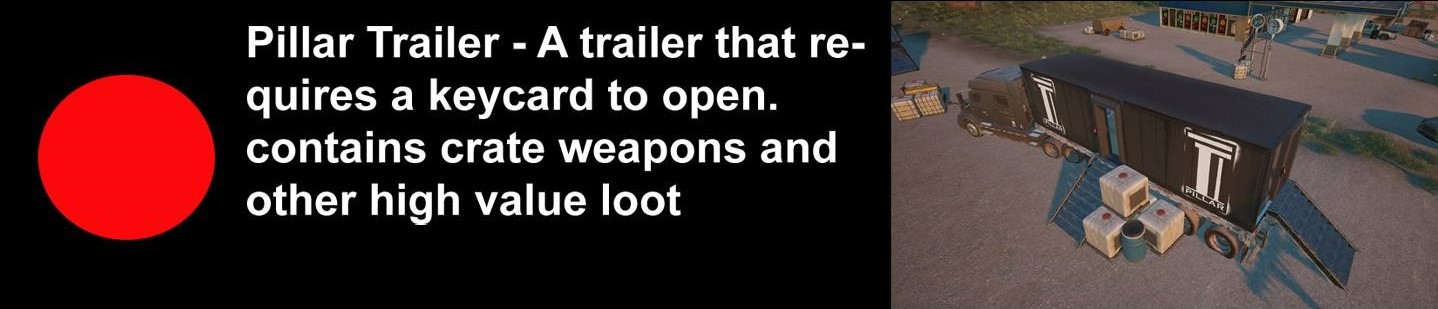
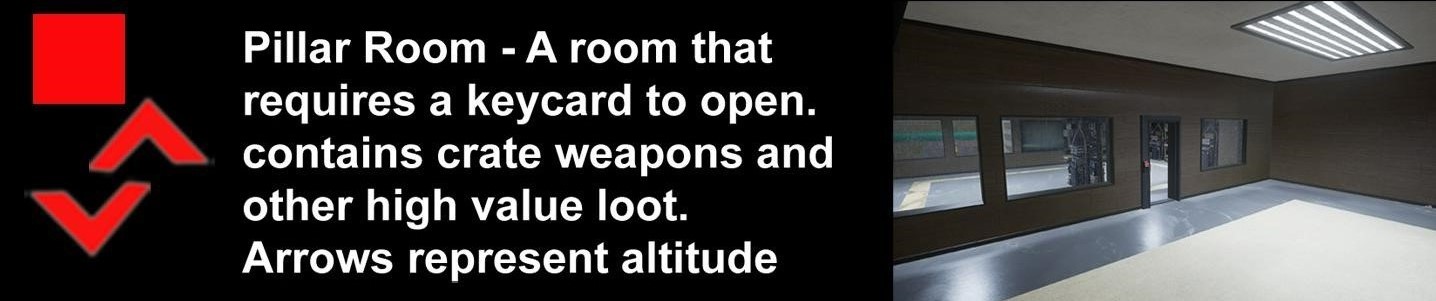
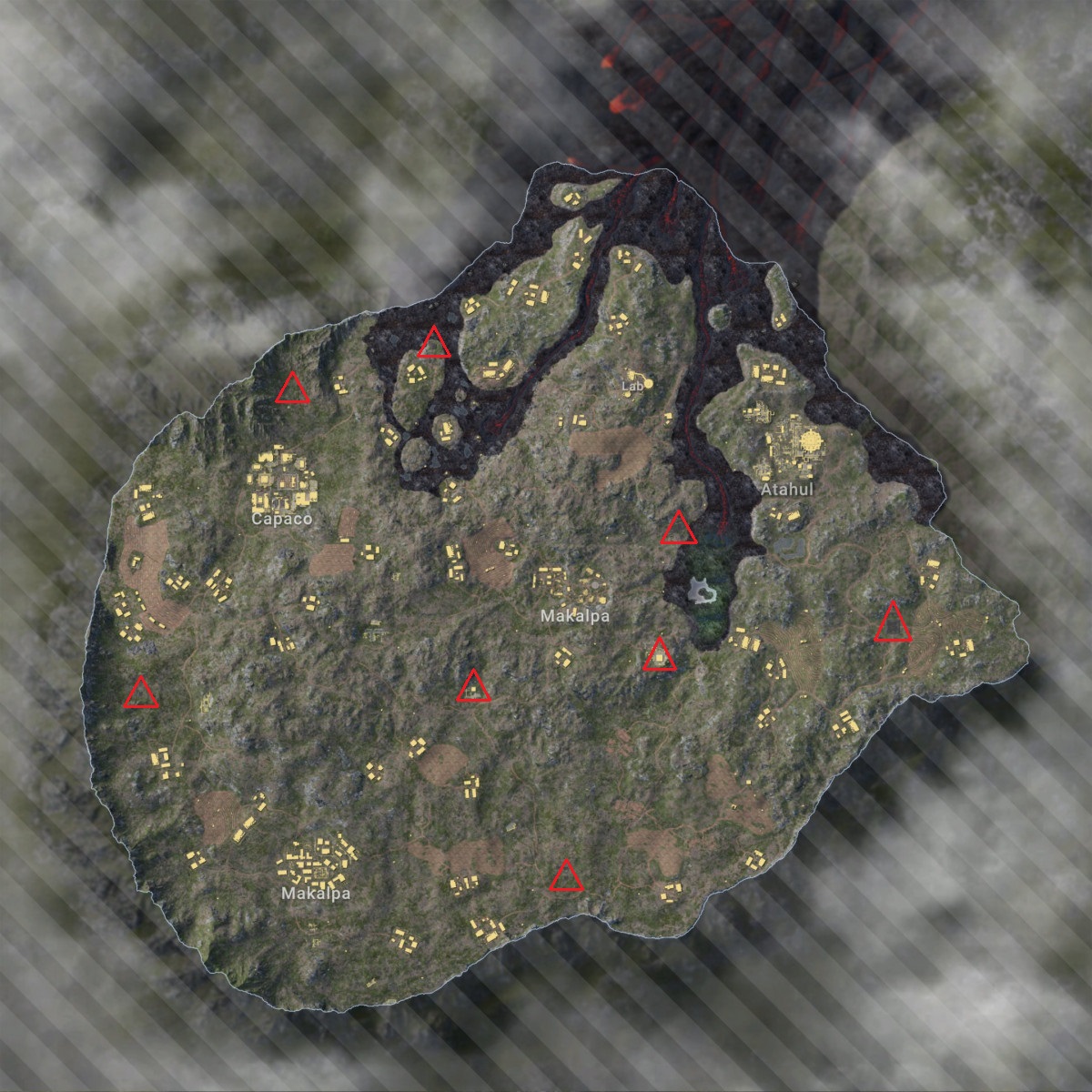
Added a detailed map of secret rooms and trailers.
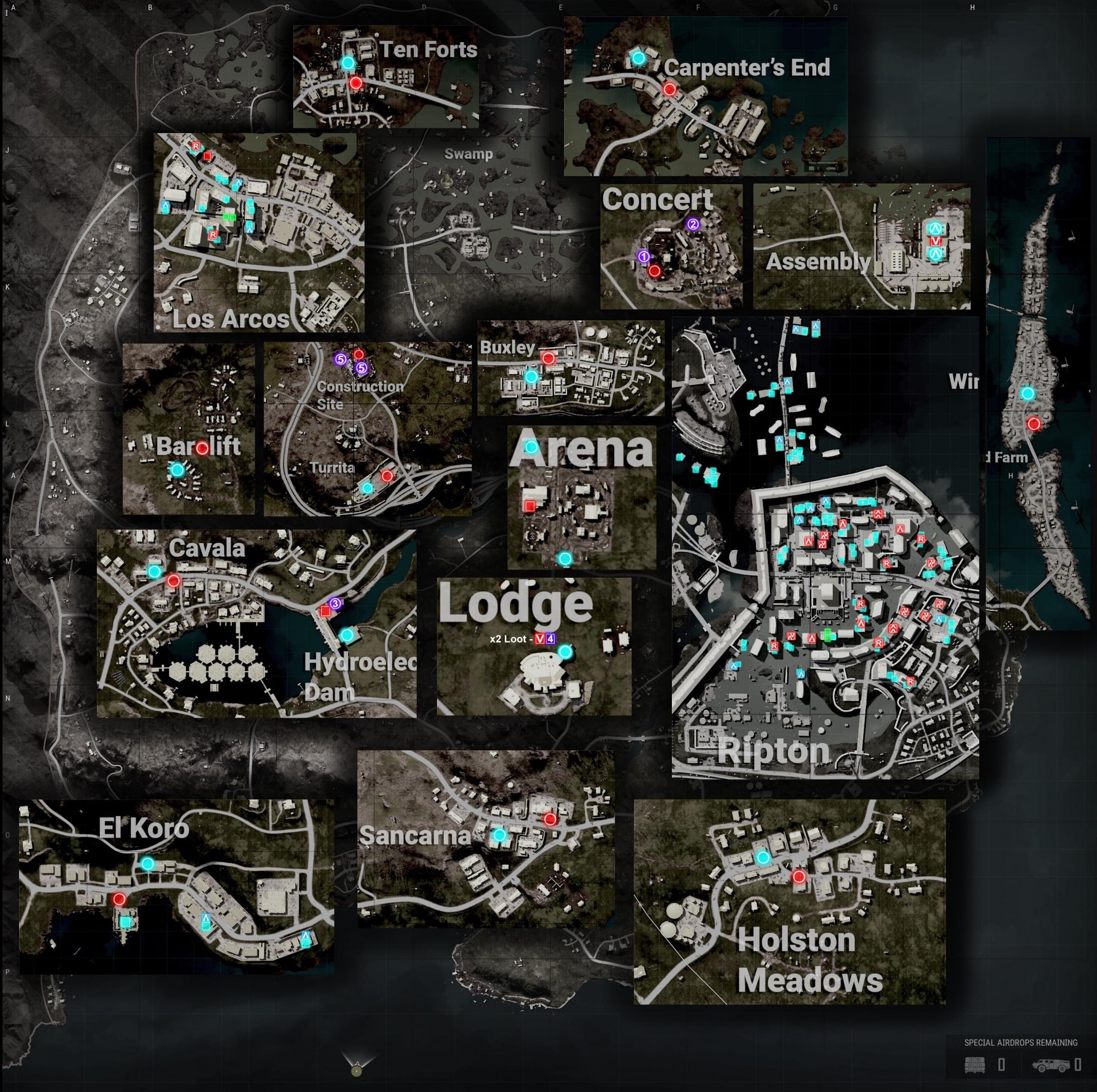
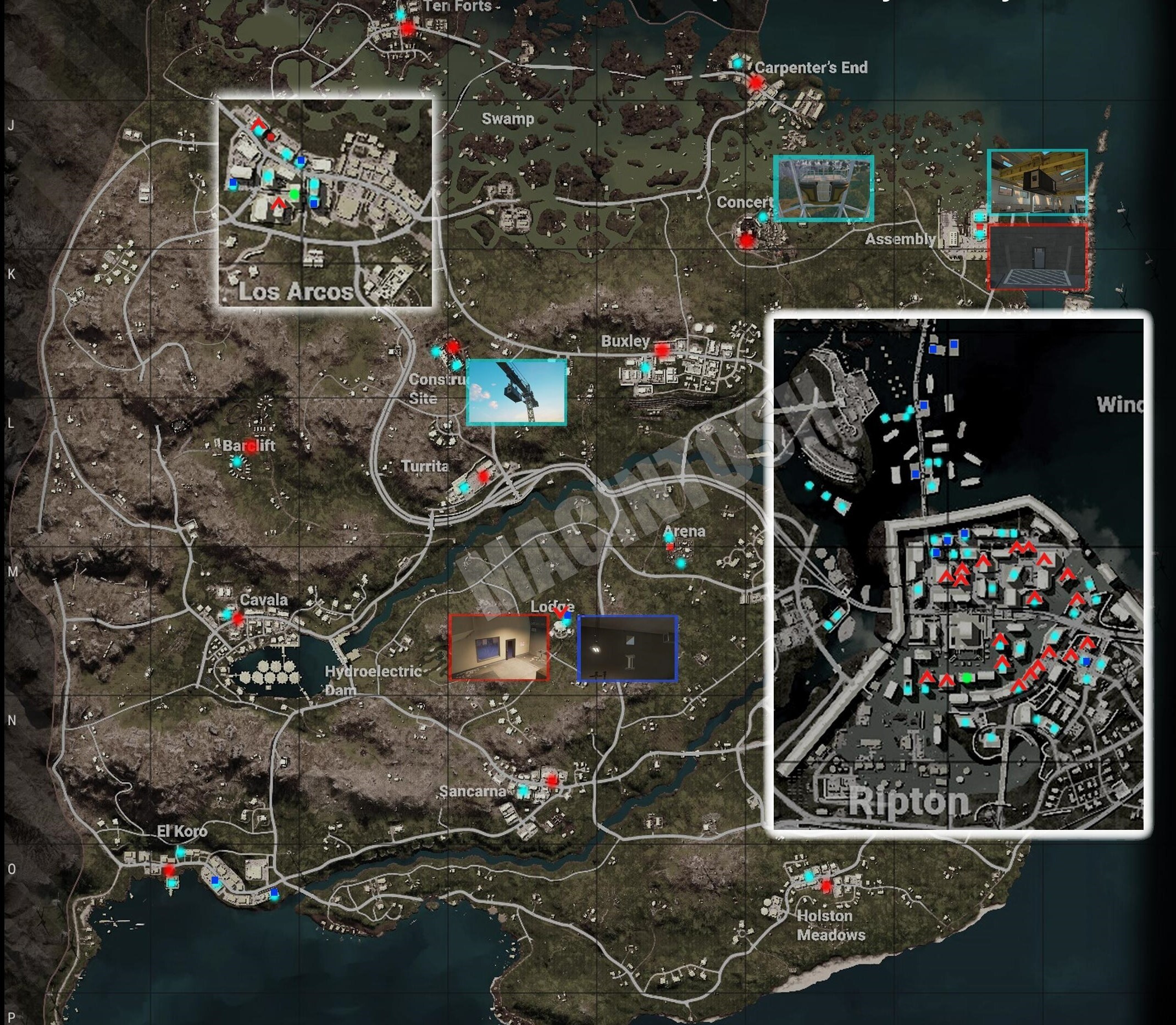
Paramo Secret Rooms
Clan AMMO-
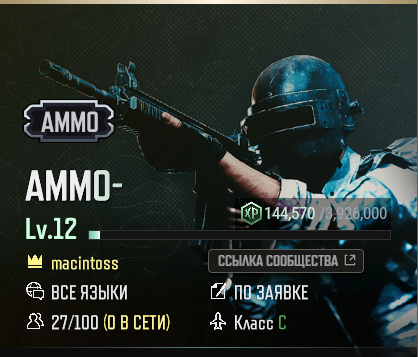
🔥 [AMMO-] leads an open recruitment of active players to level up of the clan 🔥
We offer vacancies for both experienced fighters and developing beginners!
— Complete weekly clan challenges and individual member missions
— Upgrade ur clan's rank and ur rewards
— Compete for the MVP of the week
— Collect clan and individual trophies from BP and chests to schematics and G-Coin
JOIN US ↓↓↓
Surviving a Hot Drop | PUBG Mobile & BGMI Beginner Guide 50
Surviving Hot Drops in PUBG Mobile and BGMI
Hot drops give quick loot and early kills, but the fighting starts the moment you land. Grab the first gun you find before you look for armor or anything else.
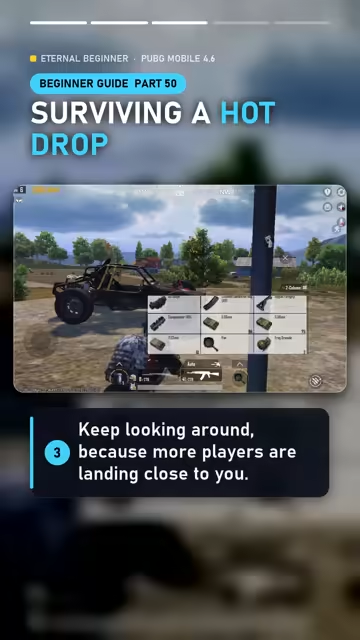
Keep looking around because more players are landing close to you. If the area gets too crowded, leave for a quieter spot, ideally in a vehicle.
PUBG: How To Get Your First Chicken Dinner pubg
How To Survive and Win Your First PUBG Match

Choosing Your Landing Spot
Want your first chicken dinner in PUBG? Stop trying to win every fight. Land away from the plane's busiest path.
Essential Early Game Loot
Weapons and Ammunition
Grab a gun, ammo, armor, a helmet, a backpack, and heals first.
Navigating the Playzone
When the next circle shows up, check the map right away and rotate before the blue zone forces a bad fight. Don't just get inside.
Moving Through Open Terrain
Pick a specific rock or building and smoke any open ground before you cross it.
Winning the Final Circles
In the final circles, solid cover beats kills. The first player to give away their spot usually loses.
Choosing a Quiet Landing Spot | PUBG Mobile & BGMI Beginner Guide 43
Choosing a Quiet Landing Spot in PUBG Mobile
Most players land near the flight path, so spots farther away from it are usually quieter. Small groups of houses often hold enough loot to get started without a crowd.
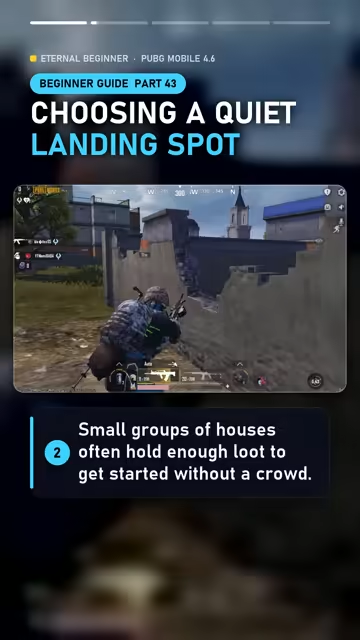
You can also land on the edge of a popular area and loot quietly before facing anyone. A quiet start gives you time to gear up fully before you head for the safe zone.
PUBG Not Launching Fix!
Verify Steam Game Files
So if you hit play and nothing's happening for you, or it just goes to a black screen after the logo, I'll show you a couple ways on how you can fix this.
Start by opening Steam and select Library in the top left. And on the left-hand side, right-click PUBG: BATTLEGROUNDS, then choose Properties.
Select Installed Files on the left-hand side. And then on the right side, click Verify integrity of game files. Wait for Steam to finish. It could take a few minutes here.
Adjust Compatibility Settings
If the game is still not launching, right-click PUBG in your Steam library, and then choose Manage, and then click on Browse local files. Open up the TslGame folder, then Binaries, then Win64.
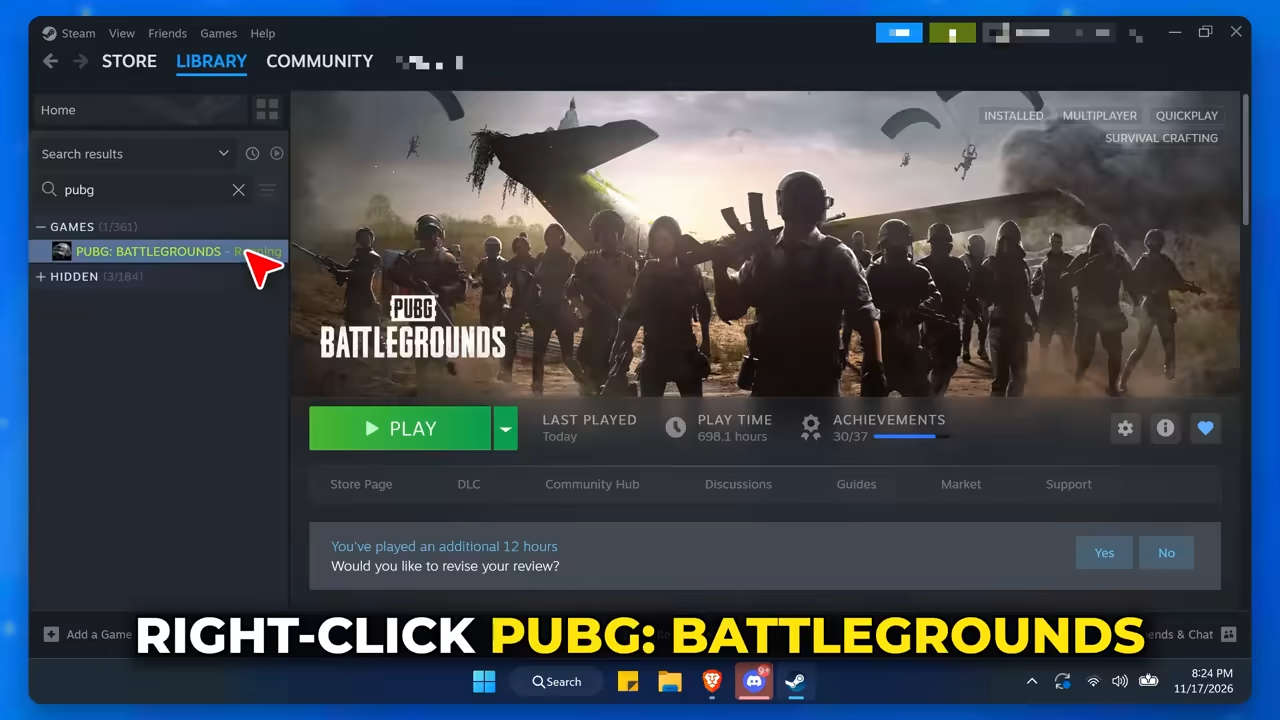
Right-click on TslGame.exe, and choose Properties. If you don't see Properties, click on the Show more options first.
Now from here, click Compatibility at the top of this menu. And then check the box next to Disable fullscreen optimizations. And check the box next to Run this program as an administrator.
Click Apply on the bottom right, and then click OK. Now launch the game from Steam, and you should get past the logo and get right to the main menu.
Set DirectX Launch Options
If the game still isn't launching, right-click PUBG: BATTLEGROUNDS in your Steam library, and choose Properties. On the General tab here, find Launch Options at the bottom, and then click in the box, and clear anything that you have in here already, and type -dx11. Just like so.
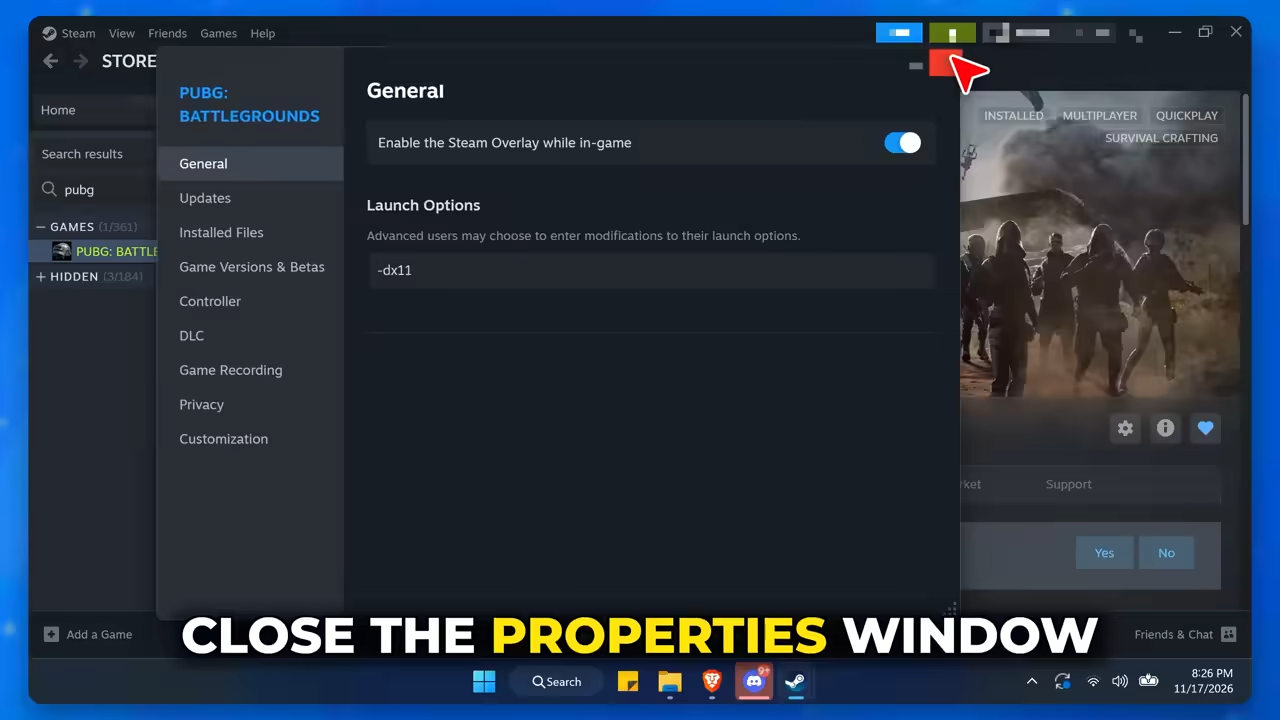
Then go ahead and close out of the Properties window, and click play, and the game should load right up into the main menu.
So you should now be able to hit play, and get right into PUBG, without struggling to get the game launching.
PUBG Season 44 - How to Fix FPS Drops, Lags & Stutter Get MAX Visibility & MAX FPS📈
Optimizing Windows Settings
Step number one is the best Windows settings and for that simply search for settings on your system and open it up. Now head down to gaming then Xbox mode and simply turn it off. It is an overlay service and in most cases you guys don't even use it. So disable Xbox mode to save your system resources and similarly disable game bar over here as well. This is exactly the same thing. So just turn both of them off.
After that head down to game mode and turn it on. It will help you optimize your PC by turning things and apps off in the background helping you save your useful system resources for gaming. Right beneath that you'll find graphics settings. Hit on that and open it up. Over here optimizations for windowed games should be turned on and this option will help you to reduce unwanted latency and then you'll find advanced graphics settings. Enable hardware accelerated GPU scheduling as this option will help you to utilize your primary graphics card to render the game.
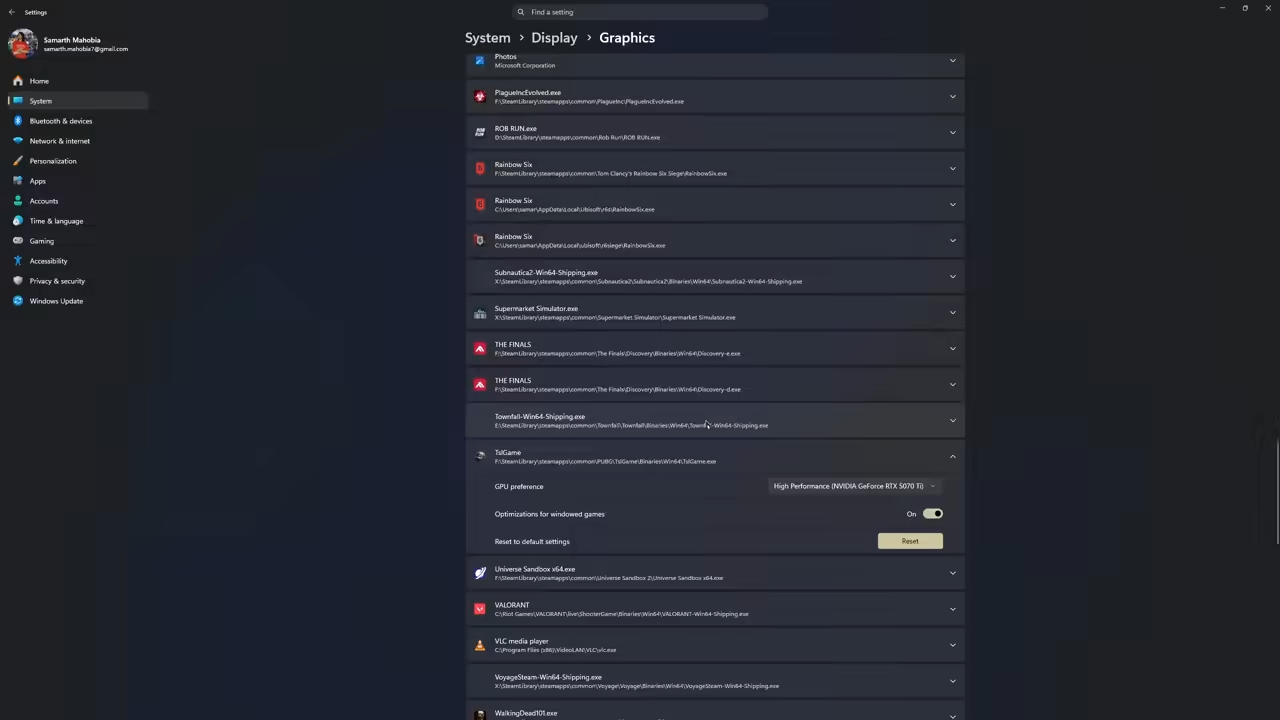
After that you'll find a list of apps installed on your system right over here. All you have to do is find PUBG in this. It will be named as TSL game. So scroll down until you find TSL game. Now it is right over here for me. If it doesn't automatically detect it, then you have to click on the add desktop app button. Head over to your Steam library apps common and then find PUBG over here which is right over here. Double click on that then head over to TSL game, binaries, win64 and then find the TSL game. exe here and click on add.
Once that's added scroll all the way down until you find TSL game. Then for the GPU preference go ahead and set to high performance and make sure that it utilizes your primary graphics card to render this game. Lastly head over the Windows update section and make sure that your Windows is always up to date. If there are any pending updates available, I would highly recommend you guys to update that and once that is done you can simply close it.
Managing System Startup and Services
The next step is disabling unwanted startup applications and you can simply do that searching for task manager on your system. And once you're here, head over the fourth tab which says startup apps and then by disabling as many applications over here as you can. These applications consume your system resources in the background and you really don't want them. Disabling that will help you not only save those resources right from the boot, but it will also help you to fasten your system booting time.
The next step is disabling background applications. Windows by default doesn't have it turned off, so you have to manually do that by searching for edit group policy. Be advised that this option will be available for Windows Pro users. Here double click on computer configuration, then head over to administrative templates, Windows components and then app privacy. You'll find let Windows apps run in the background right over here. Double click to open it up and make sure that this policy is enabled. Under options you'll find default for all apps started to force deny and this will deny all of the applications from running in the background. Once that is done, you can simply close it.
The next step is disabling prefetch. It is a background Windows service which consumes up to 20% of your CPU resources. You really don't want that and to disable that, search for services on your system and then find sysmin in this list. Double click to open the service up and set the startup type to disabled. If this service is already running, click on stop and then click on apply and then you will save unwanted system resources consumption in the background. You will see performance improvements right away.
Network Routing and Virtual Memory
The next step is fixing all kind of packet loss, ping issues and all other network related issues using GearUp. Once you open it up, it should look like this where you guys can find more than 3,000 games to choose from. Simply search for PUBG over here and select Player Unknown Battlegrounds right away. It will route your internet connection straight to the game servers, fixing any kind of high ping issues, packet loss, jitter and all other network related issues at just a single click.
Also, if you're new around here, click on the coupon code button and use my code BearFox exactly like this to get yourself a free subscription to try this out right away. Don't forget to check out GearUp. The next step is setting up virtual memory. It is really important for your games and for most of you guys it might be misconfigured. To do that, you have to search for adjust the appearance and performance of Windows and hit enter.
Head over to advanced and then you'll find virtual memory. Click on the change button here and uncheck automatically manage paging file size. Select your local disk C and set the custom size to 1 GB, that is exactly 1,024 megabytes. Now you have to open up a calculator to calculate the maximum size. And what you have to do is multiply the total RAM on your system that is 32 GB for me with 1,024 to keep all of the calculation in megabytes. Then multiply this value with 1. 5 and the new value that you get over here should be pasted in the maximum size. This is exactly how you set up virtual memory. So whenever your RAM is completely used, it will utilize your local disk C as a virtual memory for better performance. Click on okay to save it and okay once again.
Shader Cache and Drive Optimization
The next step is cleaning up shader cache. Corrupted or outdated shaders can cause performance issues in the game and PUBG is really susceptible to it. To fix that, you have to simply search for disk cleanup on your system and then select your local disk C because this is generally where your shader cache is saved. You can see DirectX shader cache is already accumulated up to 2. 7 GB over here. All you have to do is click on okay and then delete files. This will then clean up all of your shaders and force your game to re-render it once again, helping you fix any kind of issues caused by it.
The next step is optimizing your drives and it is also super simple. Search for defragment and optimize drives as this is a Windows tool. Over here you'll find a local disk C. If it is a solid state drive, click on optimize and this will start trimming your SSD for improved performance and lifespan. It helps you reduce unwanted and redundant spaces from your SSDs and fix performance issues caused by it.
If it is a hard disk drive, click on analyze but first and then click on optimize and this will defragment your hard disk drive for improved performance and lifespan. Once again, click on change settings and make sure that it is run on a schedule checked and frequency should be set to daily. Increase task priority should be turned on and drives should be all of the drives installed on your system. It will make sure that your drives always remain optimized in the background every single time you boot your system up.
Applying the PUBG FPS Pack
The next step is PUBG Season 44 FPS pack. The FPS pack contains six simple folders over here including a zero folder called restore point. This helps you optimize your system very thoroughly and let's get started with it. First one, head over to restore point and then double click on create a restore point. Over here select your local disk C, hit create and then you have to name it PUBG just so you can remember it. I would highly recommend you guys not to skip this step if you want to restore all of your settings back to normal without any data loss. Now once that is done, hit close, then okay.
The first folder here is CPU priority, where I have left AMD as well as Intel CPU priority. It helps you set up the best dword value for your processor for improved performance and you can double click and apply that. Second one is RAM optimization, which basically does the same thing but for your RAM. I have left it on off presets to choose from. I have 32 GB RAM, so I can choose this one. I've already done it, but you can double click and apply it for your system and I've also left a reset to default over here just in case.
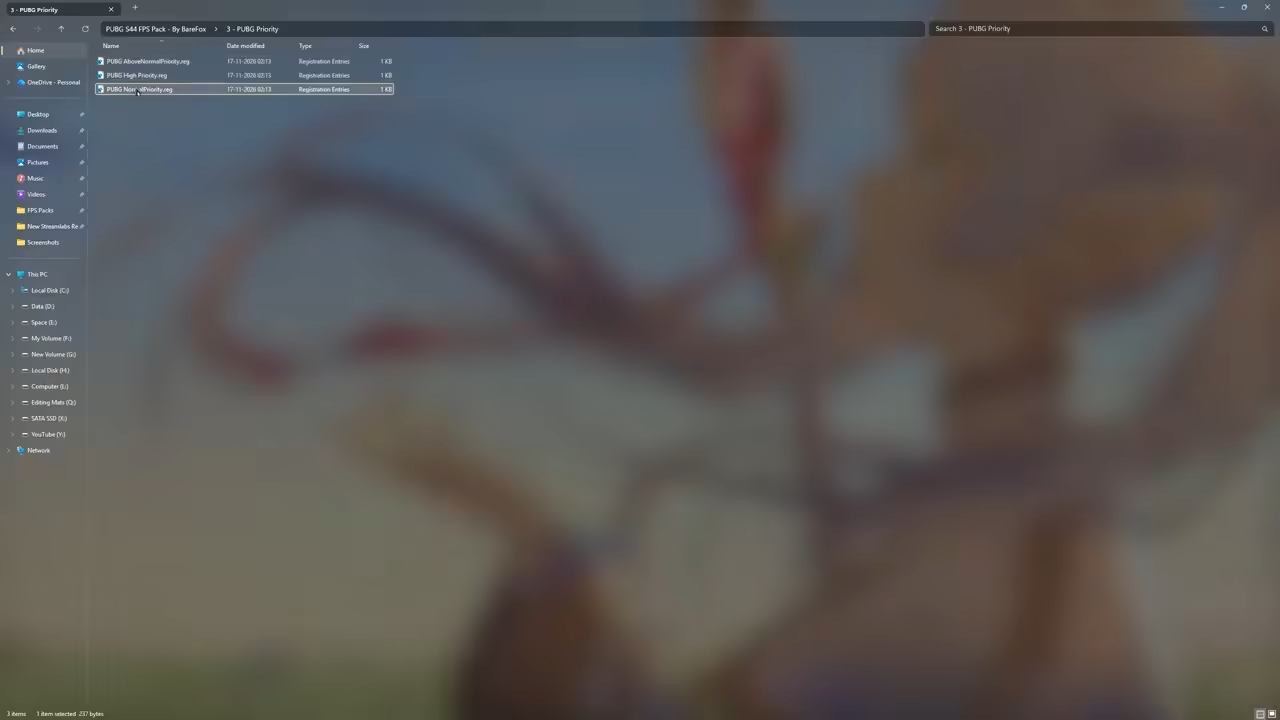
The third folder is PUBG priority, where I have left above normal, high priority, and normal priority. Once again, I would recommend you guys to leave your PC specs down in the comments below and I'll be telling you guys which priority you need to choose over here for maximum performance. Fourth folder is disable unwanted services, where I have left all of these services which are absolutely useless, but they're still running in the background, consuming your useful system resources. You can double click and apply it according to your system and it will help you improve your system's performance dramatically. Once again, they're completely optional, so feel free to skip any service if you use them and I've also left a revert to default over here just in case you want to revert them back.
The fifth folder is batch tweaks, where I have left these three batch files. It includes buffer bloat fix, disable memory compression for a better RAM usage, and latency tweaks to improve unwanted input delay. Run all of them as administrator to make sure that they're applied correctly and it helps you run a few commands on your system to optimize it thoroughly. The sixth folder here is programs, where I have left these simple programs.
Using Advanced Optimization Utilities
Advanced Temp Cleaner
Simply run it as administrator. This gives you a detailed temporary cleaner over here which cleans your 12 sections of cache files. All you have to do is press Y and this will start cleaning your system. It might take a minute or two to run, so let it run in the background, keep it minimized.
MSI Mode V3
Simply run it as administrator. We're using this simple software to optimize the interrupt priority of our graphics card. Find your graphics card in this list, click on the MSI button right next to it, and then for the interrupt priority, go ahead and set to high and then click on the apply button on the top right section. It will make sure that your graphic card can handle interrupts on a higher priority, improving its performance and lifespan.
Pro PC Optimizer V2
Simply run it as administrator. This simple menu base system optimizing tool that helps you take control of all of your system resources. It offers you 10 optimizations from zero to nine. I would highly recommend you guys to run everything from two up to nine and it also helps you run a system health check and all of it is absolutely free. I have developed this software myself, so you can trust it. Simply press the number adjacent to it in the selection over here and it will do that. After you're done with that, press E to exit out of it.
RAM Map
You have to run it as administrator. Here's how RAM Map actually works. You can see that my system is currently using 20 GB of my RAM and 11 GB out of it is cached. To free this memory up, you have to click on empty button on the RAM map and then select empty working sets. It free up all of the RAM currently not being used by the applications in focus and then click on empty and select empty standby list and it then cleans all of your cached memory. Now you have ample of free memory for your games to utilize. So you can simply close all of it and now drop into the game for the best in game settings.
Configuring In-Game Graphics Settings
In your game, simply head over to settings and then click on the settings button over here. Then under the graphics settings, set NVIDIA Highlights to disabled if that is available for you. I have already disabled it from the system, so it doesn't really matter. Then head over to the advanced settings and then you have to set the custom graphics quality.
For post processing, go ahead and set it to very low. Shadows, you can go ahead and set it to very low. It will help you improve visibility. Textures, keep high or medium, both of them works fine. Effects, you guys can use low or very low, both of them works absolutely fine. Foliage, keep it low or low and then view distance, keep it medium if you're using a sniper.
If you're playing close range in many games and if sniper is not your thing, use low or very low. However, I'm a sniper player, so I'm going to be using medium here. Now for resolution and anti-aliasing, use resolution upscaling to NVIDIA DLSS if you have an NVIDIA graphics card or AMD FSR if you have an AMD graphics card. AMD users, I would highly recommend you guys to use balanced or quality, both of them works absolutely fine. And Intel users, for DLSS quality, use balanced or quality.
Once again, for the DLSS model, if you have your graphics card below RTX 40 series, use CNN. If you have 40 series and above, use Transformer. It will help you get better FPS. Direct text version, use DirectX 11 enhanced. Then scroll down and then sharpen, you can keep it enabled. I personally like my game like this and disable motion blur. For render scale, I have gone with 120, FVP camera FOV 103 and VSync disabled. After that, you guys can click apply over here to save these settings, restart your game and then play it on the highest FPS possible.
What players say
PUBG: How To Get Your First Chicken Dinner pubg
Biggest mistake I see: crossing open ground without a smoke. Solid cover beats kills in the final circles. What's your best finish without a chicken dinner?
xJay419
PUBG Not Launching Fix!
Still issues? Comment below describing the problem so me and others can help out! Leaving a like is a free way to say thanks but it's totally up to you, thanks for watching!
kitsuneguide
PUBG Season 44 - How to Fix FPS Drops, Lags & Stutter Get MAX Visibility & MAX FPS📈
This is the best guide I've found, the only one that worked for me.
SamwellUSA
I have an Intel i7 13th gen 16GB DDR5 RAM RTX 5060Ti What priority?
Humanyst
Got better fps after the steps and pc restart, thanks.
elitegreen7787
Did this work for you?
Related topics: launch fixes, performance fixes