 Day One Fixes
SolvedHow-toUpdated
Deathground: PC Controls and Keybindings Guide
Short answer
A full breakdown of all the default PC keybindings and control settings for Deathground. Learn the controls for movement, combat, inventory management, and more before you jump in.
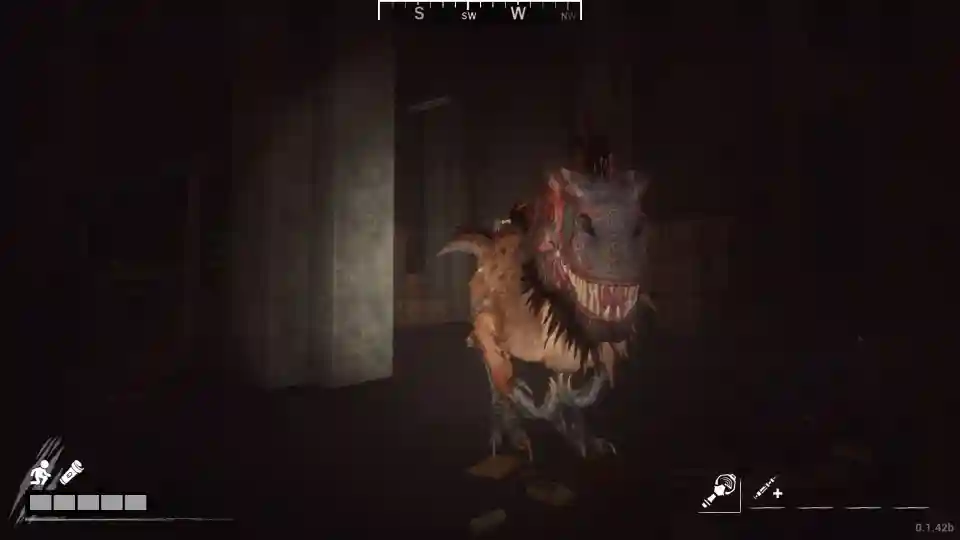
A full breakdown of all the default PC keybindings and control settings for Deathground. Learn the controls for movement, combat, inventory management, and more before you jump in.
Getting Started with Deathground’s Controls
Knowing your controls is the first step to surviving the prehistoric horrors in Deathground. Getting wrecked because you forgot the key for your flashlight is a classic rookie mistake, and we’re here to make sure it doesn’t happen to you.
This guide covers the complete default layout for keyboard and mouse players. Remember that you can customize most of these keys in the settings menu, so don’t be afraid to experiment to find what feels best for you.
General Mouse and Look Settings
Before diving into the key-by-key breakdown, let’s look at the general settings that affect how you aim and look around. These are some of the first things you might want to tweak.
| Setting | Default Value |
|---|---|
| Invert Vertical Look | Disabled |
| Horizontal Look Sensitivity | 0.50 |
| Vertical Look Sensitivity | 0.50 |
| Toggle Sprint | Disabled |
Pro Tip: The default Look Sensitivity of 0.50 is a good starting point, but you should adjust this to match your preference. A comfortable sensitivity is crucial for reacting quickly to threats.
Movement Controls
These are the essential keys for navigating the world, whether you’re sneaking past a raptor or running for your life from a T-Rex.
| Action | Key |
|---|---|
| Move Forward | W |
| Move Backward | S |
| Move Left | A |
| Move Right | D |
| Jump | Space |
| Sprint | Left Shift |
| Crouch | Left Ctrl |
| Toggle Crouch | C |
Combat and Interaction Controls
Knowing how to peek around corners and interact with objects is key to staying alive. These are your main action keys outside of basic movement.
| Action | Key |
|---|---|
| Lean/Peek Left | Q |
| Lean/Peek Right | E |
| Interact | F |
| Flashlight | T |
| Ping/Mark Point | Middle Mouse Button |
| Overlay/Objectives | Tab |
Inventory and Item Controls
Fumbling with your inventory is a death sentence. Memorize these keys to quickly access your gear and items when you’re in a tight spot.
| Action | Key |
|---|---|
| Item Slot 1 | 1 |
| Item Slot 2 | 2 |
| Item Slot 3 | 3 |
| Item Slot 4 | 4 |
| Item Slot 5 | 5 |
| Item Slot 6 | 6 |
| Next Item | Mouse Wheel Up |
| Previous Item | Mouse Wheel Down |
| Discard Item | G |
Tips for Your Control Setup
Before you start your first match, take a minute to go into the settings and dial in your controls.
Pay attention to the “Toggle” options for Sprint and Crouch. By default, Sprint is set to “Hold” (as Toggle is disabled), while Crouch has both a Hold (Ctrl) and a Toggle (C) option. Choose whichever style you’re more comfortable with so you’re not fighting the controls during a tense chase.
Now you know the full control scheme for Deathground. Get in there, stay quiet, and try not to become dino food on your first run!