 Day One Fixes
SolvedFixUpdated
Battlefield 6: How to Fix “Server Disconnected” Errors
Short answer
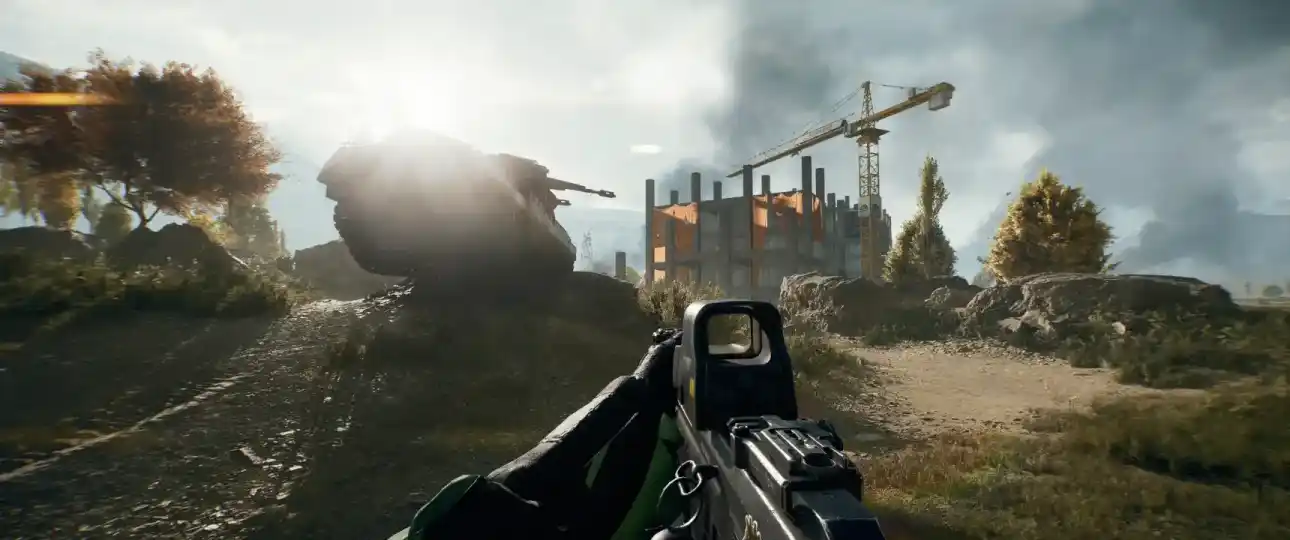
Getting constantly kicked from matches with a “Server Disconnected” error in Battlefield 6? It’s a high-key frustrating issue plaguing many players. This problem can often be traced back to your network connection or how your PC communicates with the game’s servers.
Getting constantly kicked from matches with a “Server Disconnected” error in Battlefield 6? It’s a high-key frustrating issue plaguing many players. This problem can often be traced back to your network connection or how your PC communicates with the game’s servers.
Fixing the Frustrating “Server Disconnected” Error
This guide covers the two most effective community-tested solutions: changing your DNS server and using a specialized VPN-like tool to stabilize your connection.
First, The Basic Checks
Before you dive into the advanced fixes, make sure you’ve covered the basics:
- Check Server Status: Make sure the Battlefield 6 servers aren’t down by checking the official EA Help website or their Twitter/X account.
- Restart Everything: Restart your game, the EA App/Steam, and your internet router.
- Verify Game Files: In Steam, right-click the game -> Properties -> Installed Files -> “Verify integrity of game files.” This fixes any corrupted data.
If you’ve done all that and are still getting disconnected, it’s time to try the more advanced solutions below.
Method 1: Change Your DNS Server (Easy Fix)
Sometimes, the default DNS server provided by your Internet Service Provider (ISP) is slow or overloaded, leading to connection timeouts with game servers. Switching to a public DNS server like Google’s or Cloudflare’s is a simple and effective fix that works for many players.
How to Change Your DNS on Windows:
- Open Windows Settings and go to “Network & Internet.”
- Click on “Ethernet” (if you use a wired connection) or “Wi-Fi” (if you’re on wireless).
- Find the “DNS server assignment” option and click “Edit” (or “Изменить” in Russian).
- Change the setting from “Automatic (DHCP)” to “Manual.”
- Turn on the IPv4 toggle.
- Enter one of the following public DNS addresses:
- Google DNS (Recommended):
- Preferred DNS:
8.8.8.8 - Alternate DNS:
8.8.4.4
- Preferred DNS:
- Cloudflare DNS (Often Faster):
- Preferred DNS:
1.1.1.1 - Alternate DNS:
1.0.0.1
- Preferred DNS:
- Google DNS (Recommended):
- Click “Save” and restart your game to see if the issue is resolved.
Method 2: Use AmneziaWG for a More Stable Connection (Advanced Fix)
If changing your DNS didn’t work, this advanced method has helped many players. It involves using a free tool called AmneziaWG, which creates a secure, optimized tunnel for your internet traffic, similar to a VPN. This can bypass problematic routing from your ISP that might be causing the disconnects.
How to Set Up AmneziaWG:
- Download AmneziaWG: Go to the official GitHub page for the Windows client and download the latest release (
.exefile). The specific version mentioned in the community guide is v1.0.3.- Direct Link:
https://github.com/vayulqq/amneziawg-windows-client/releases/tag/v1.0.3
- Direct Link:
- Generate a Config File: You’ll need a configuration file to tell AmneziaWG how to connect.
- Go to the
warp.llimonix.devwebsite to generate a free configuration.
- Go to the
- Add the Tunnel:
- Open the AmneziaWG application you just installed.
- Click the “Add Tunnel” button.
- Paste the configuration you generated from the website.
- Connect Before Playing: Before you launch Battlefield 6, click “Connect” inside the AmneziaWG app. Once it shows you’re connected, you can start the game.
This method has proven to be a very reliable fix for players who have tried everything else without success.
Quick Fix Summary
| Problem | Potential Solution | Difficulty |
|---|---|---|
| Frequent “Server Disconnected” errors. | Change DNS Server to Google or Cloudflare. | Easy |
| DNS change didn’t work. | Use AmneziaWG to create a stable connection tunnel. | Advanced |